# Reports "Select Test"
# Reports overview of all evaluations
[](https://manual.ivaluate.de/uploads/images/gallery/2024-06/iva-auswertung-ubersicht-aller-evaluationen-en.png)
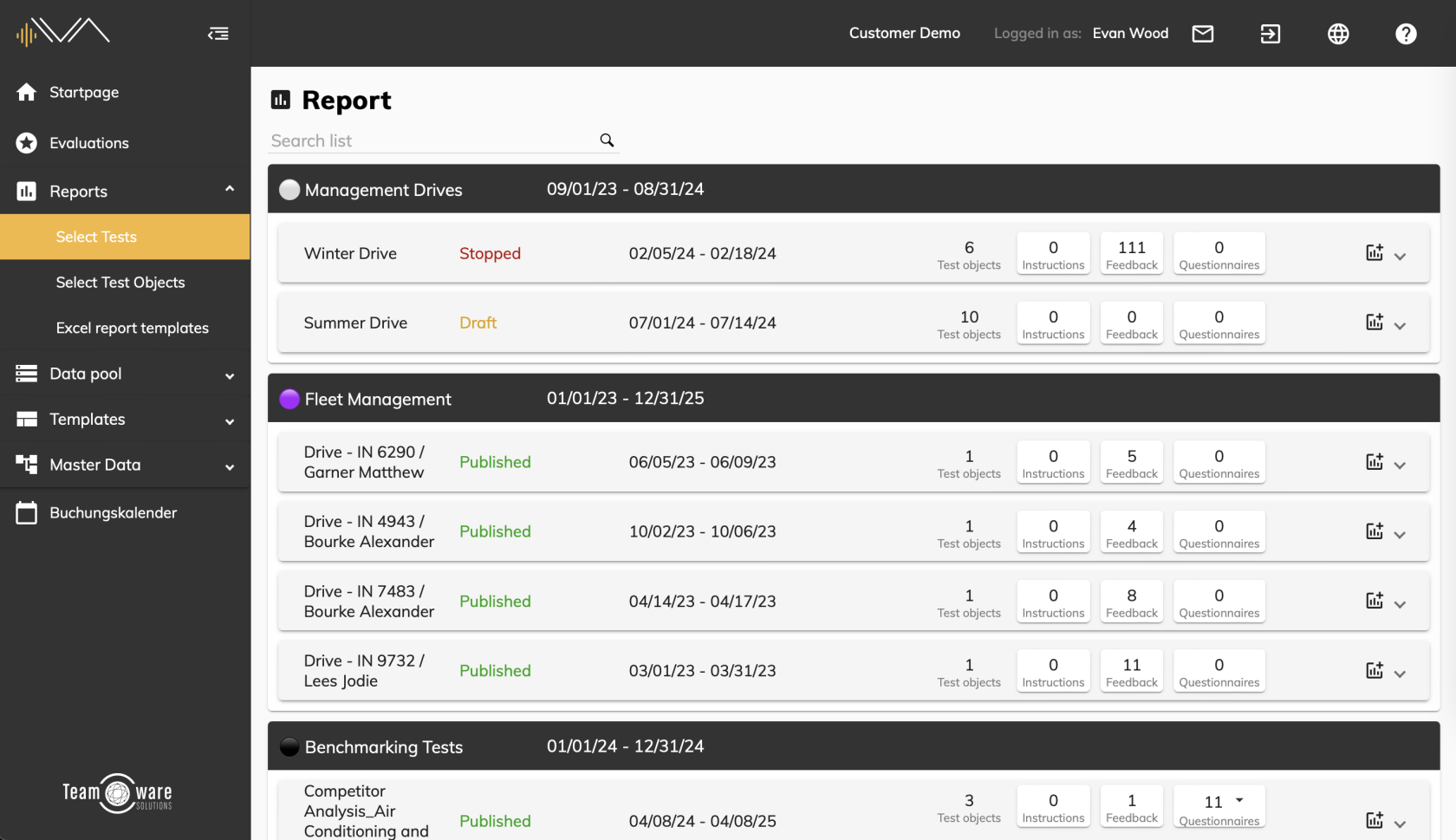
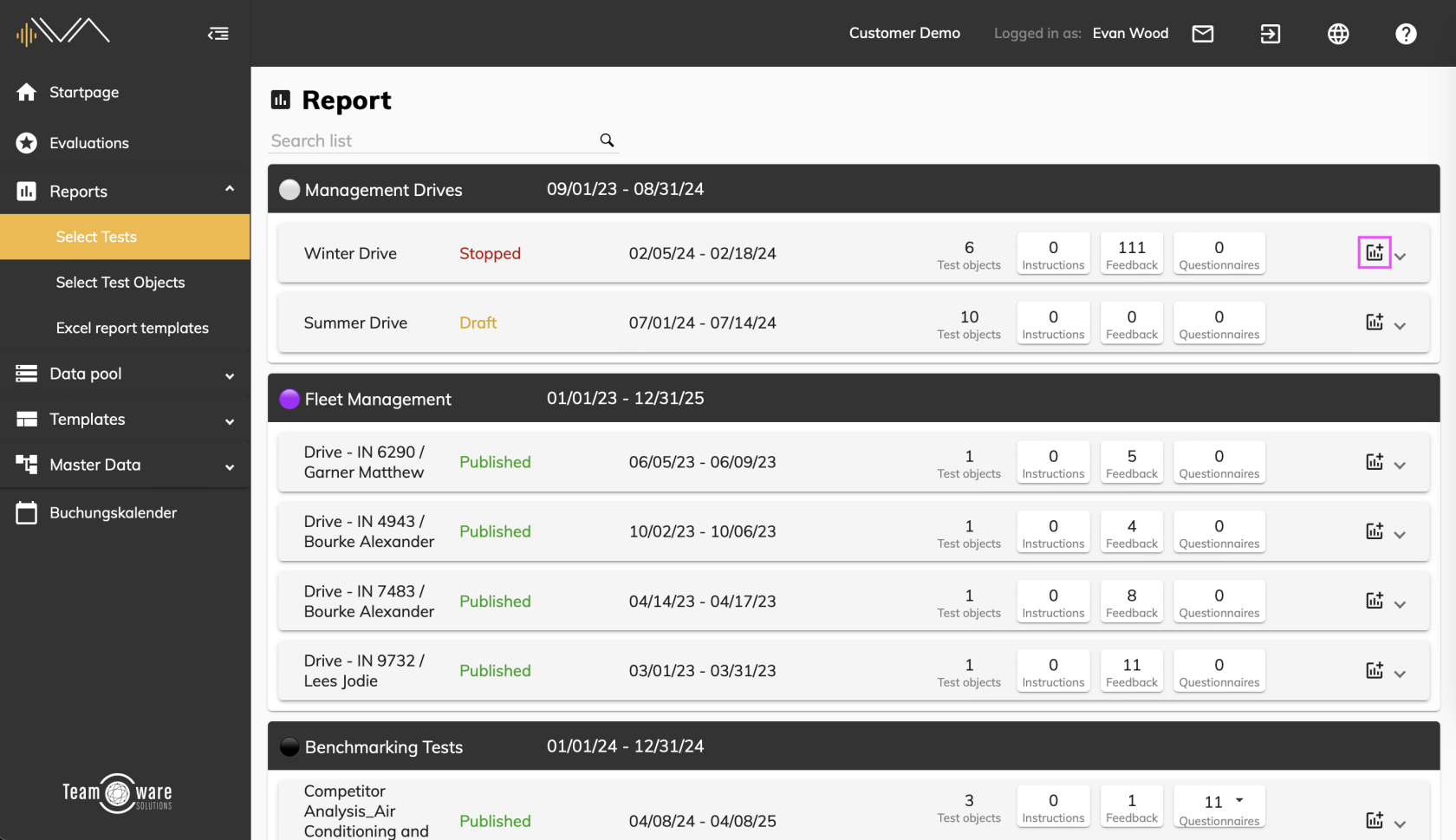
To navigate to the report overview, click on "Reports" -> "Select test" in the navigation bar on the left. Here you will see a list of all the existing evaluations in this division. You will find the corresponding tests under the name and time period of the respective evaluation. Each evaluation contains at least one test.
Tests are displayed in a gray tile containing the following information:
- Test name
- Test status ([LINK to the manual](https://manual.ivaluate.de/books/evaluationen/page/status-eines-tests-bearbeiten))
- Time period
- Number of test objects
- Results for instructions, feedback and questionnaires
- "Create report" icon
# Report overview of all test objects in a test
[](https://manual.ivaluate.de/uploads/images/gallery/2024-06/iva-auswertung-ubersicht-aller-testobjekte-en.png)
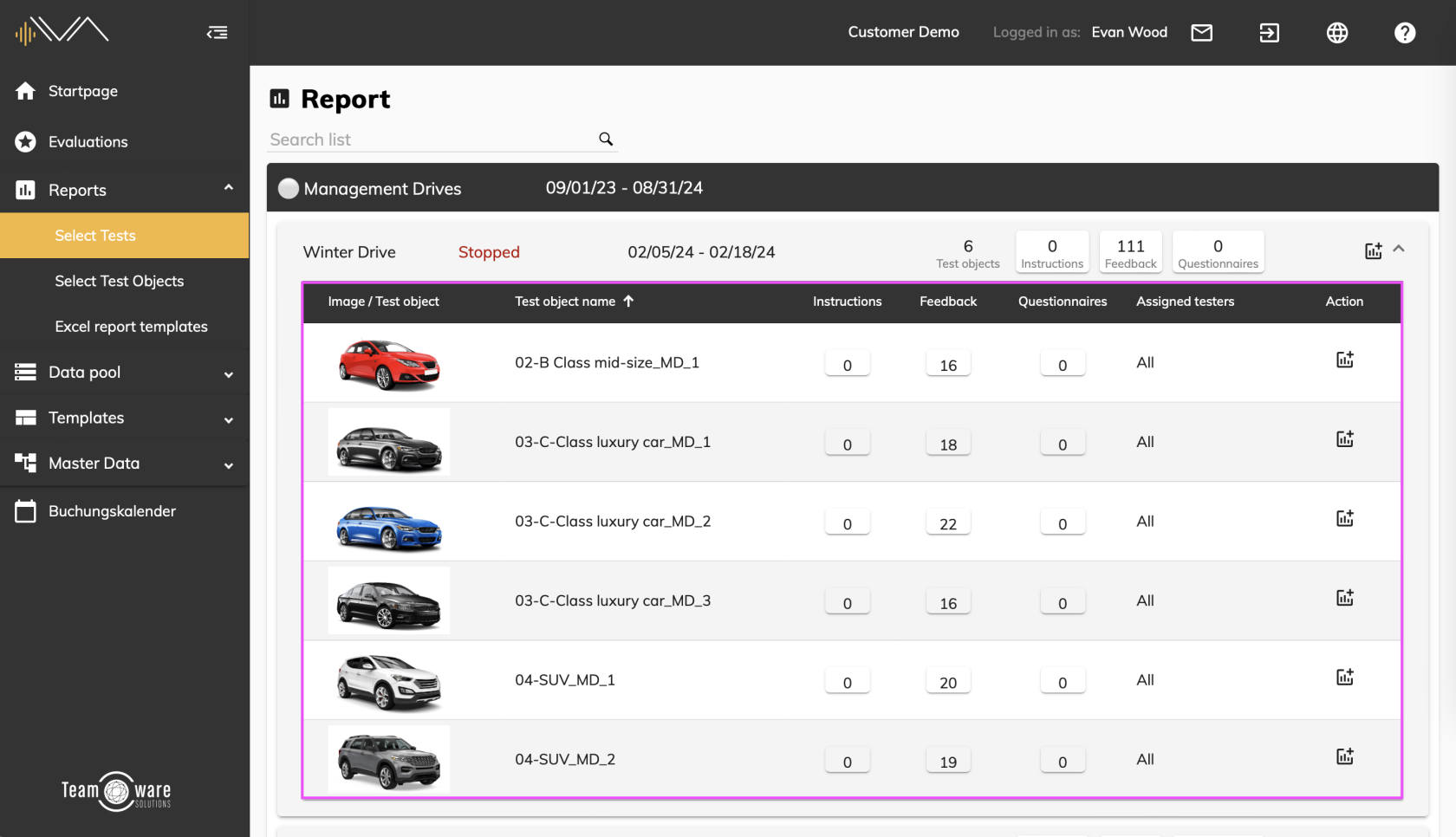
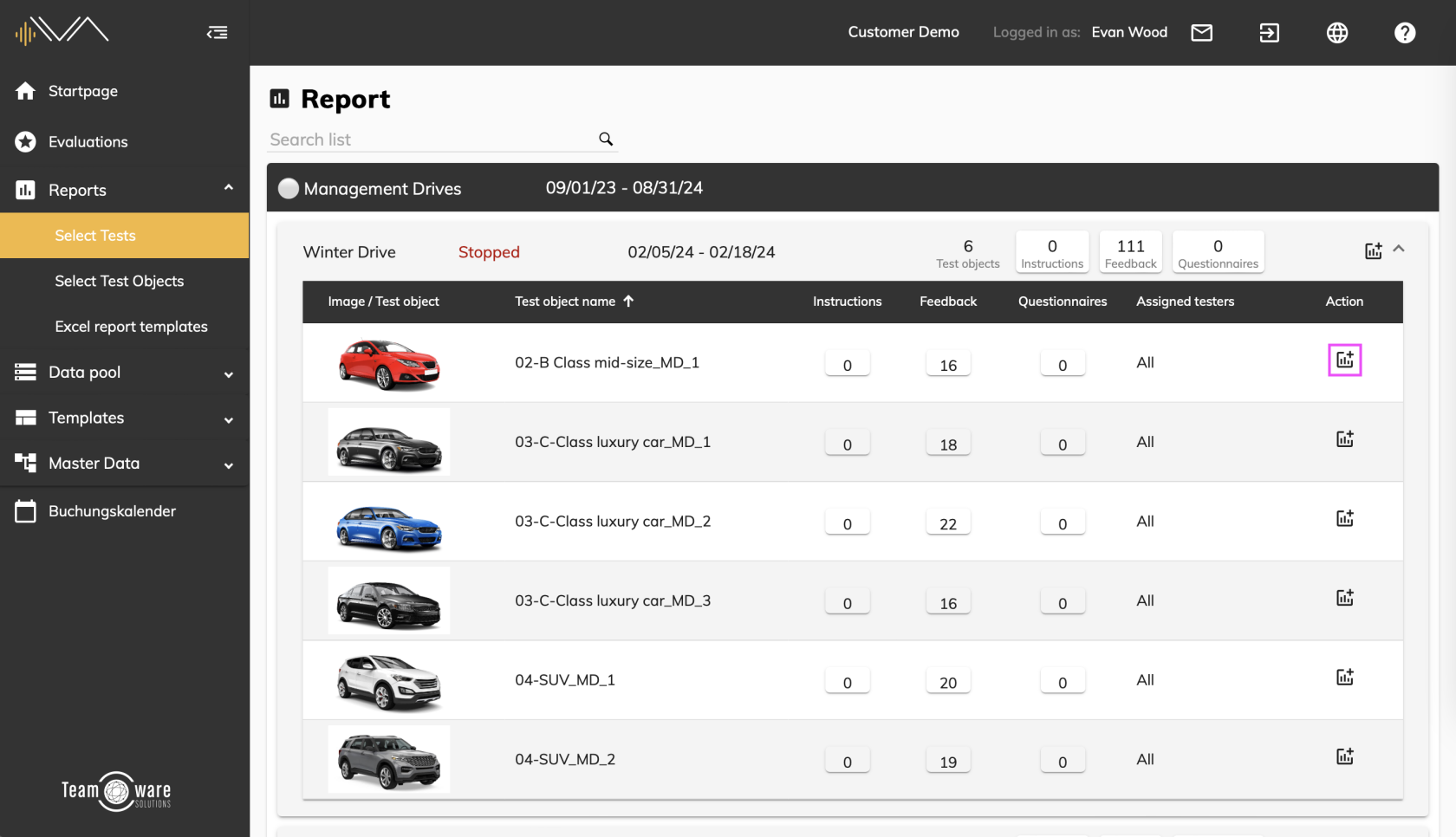
You can get an overview of all test objects in a test by clicking on the respective tile or on the arrow icon in the right-hand corner of the gray tile.
A test object is displayed in a gray tile containing the following information:
- Image of the test object
- Test object name
- Results for instructions, feedback and question catalogs of the respective test object
- Assigned testers
- "Create report" icon
# Results of a test / test object (result tiles)
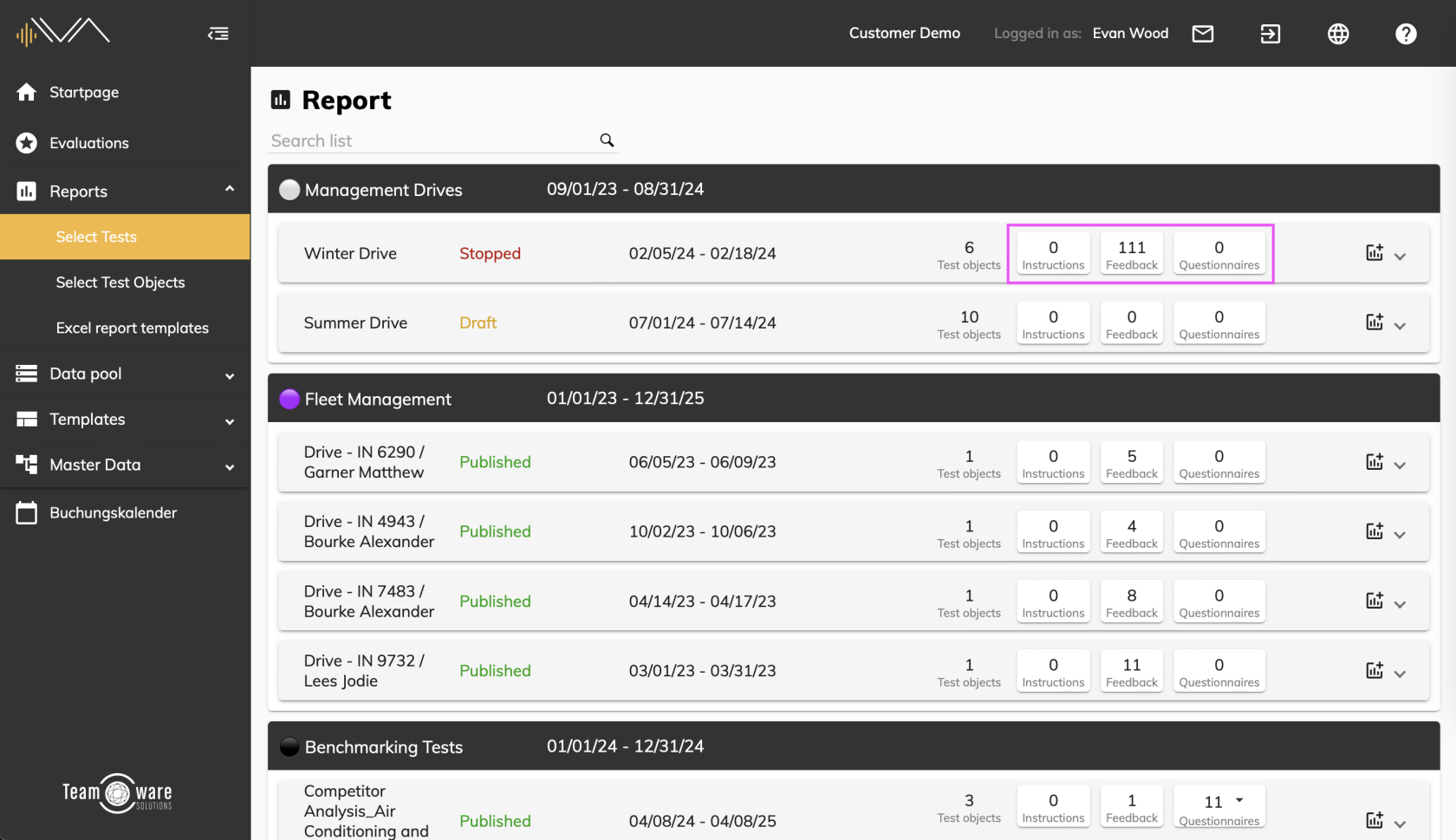
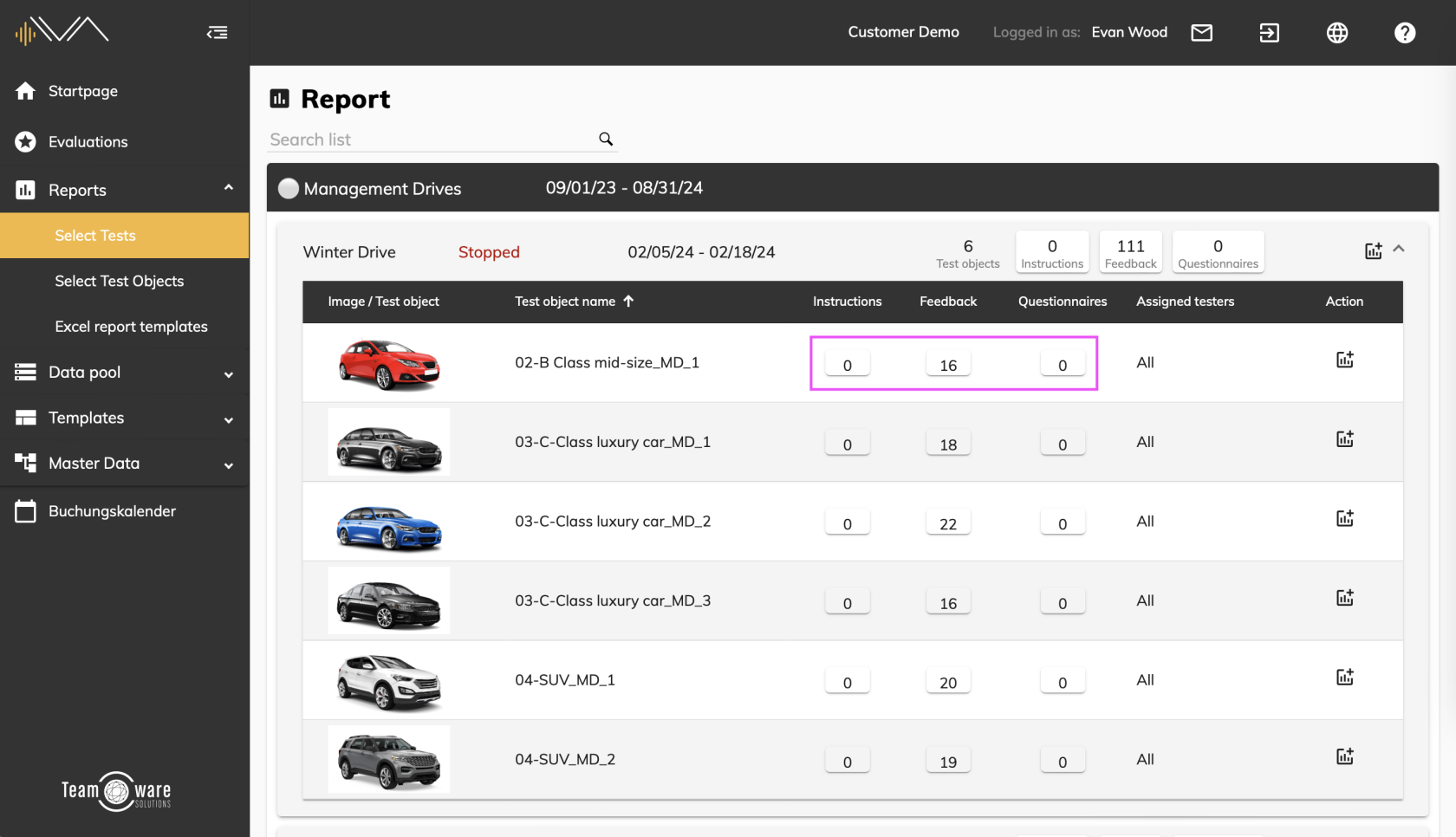
By clicking on one of the result tiles, you can access more detailed views and reports of instructions, [feedback](https://manual.ivaluate.de/books/reports/chapter/feedback-reports)[ ](https://manual.ivaluate.de/books/auswertung/chapter/feedback-auswertung)or questionnaires of the corresponding test.
To access a more detailed view of the results for a specific test object, click on the corresponding result tile of the relevant test object.
[](https://manual.ivaluate.de/uploads/images/gallery/2024-06/iva-auswertung-ergebniskacheln-von-tests-en.png)
[](https://manual.ivaluate.de/uploads/images/gallery/2024-06/iva-auswertung-ergebniskacheln-von-testobjekten-en.png)
# "Create report" for tests / test objects
If you want to export the results of a test, click on the “Create report” icon on the right-hand side of the corresponding tile.
If you want to export the results of an individual test object, click on the “Create report” icon on the right-hand side of the corresponding tile of the relevant test object.
[](https://manual.ivaluate.de/uploads/images/gallery/2024-06/iva-auswertung-report-erstellen-test-en.png)
[](https://manual.ivaluate.de/uploads/images/gallery/2024-06/iva-auswertung-report-erstellen-testobjekte-en.png)