# 2.3. Test object tile for planners

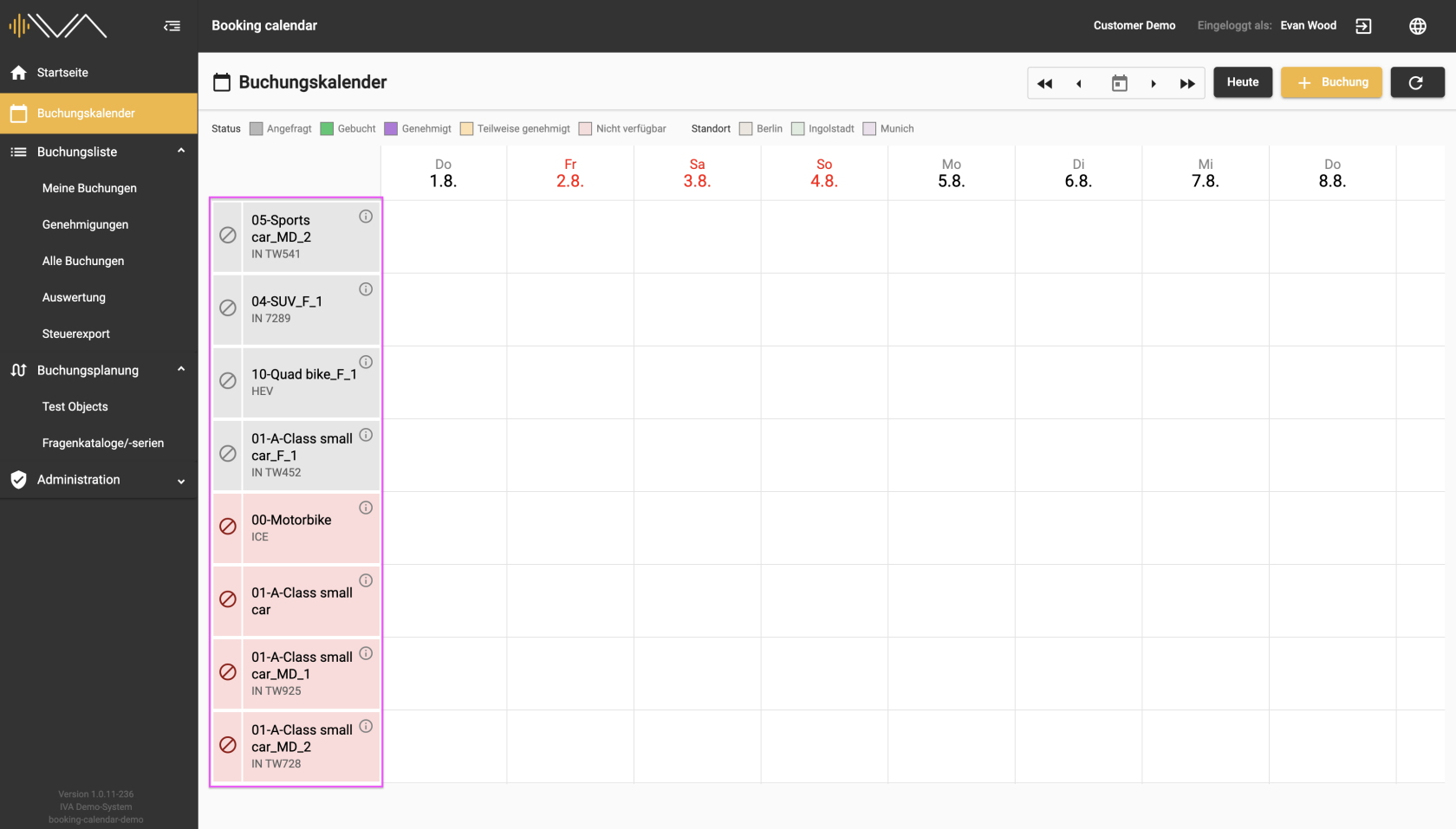
<span data-contrast="auto">In the calendar, you will find the list of available test objects in the first column on the left and the respective day view.</span><span data-ccp-props="{"201341983":0,"335559739":0,"335559740":240}"> </span>

<span data-ccp-props="{"201341983":0,"335559739":0,"335559740":240}">[![2.2.1-Buchungskalender-Fahrzeuge-Übersicht-Planer.png](https://manual.ivaluate.de/uploads/images/gallery/2024-07/scaled-1680-/2-2-1-buchungskalender-fahrzeuge-ubersicht-planer.png)](https://manual.ivaluate.de/uploads/images/gallery/2024-07/2-2-1-buchungskalender-fahrzeuge-ubersicht-planer.png)</span>

<span data-contrast="auto">The two most important pieces of information are displayed in the test object tile:</span><span data-ccp-props="{"201341983":0,"335559739":0,"335559740":240}"> </span>

- <span data-contrast="auto">Test object **name** </span><span data-ccp-props="{"201341983":0,"335559739":0,"335559740":240}"> </span>
- <span data-contrast="auto">The first two **attributes**</span><span data-ccp-props="{"201341983":0,"335559739":0,"335559740":240}"> </span>

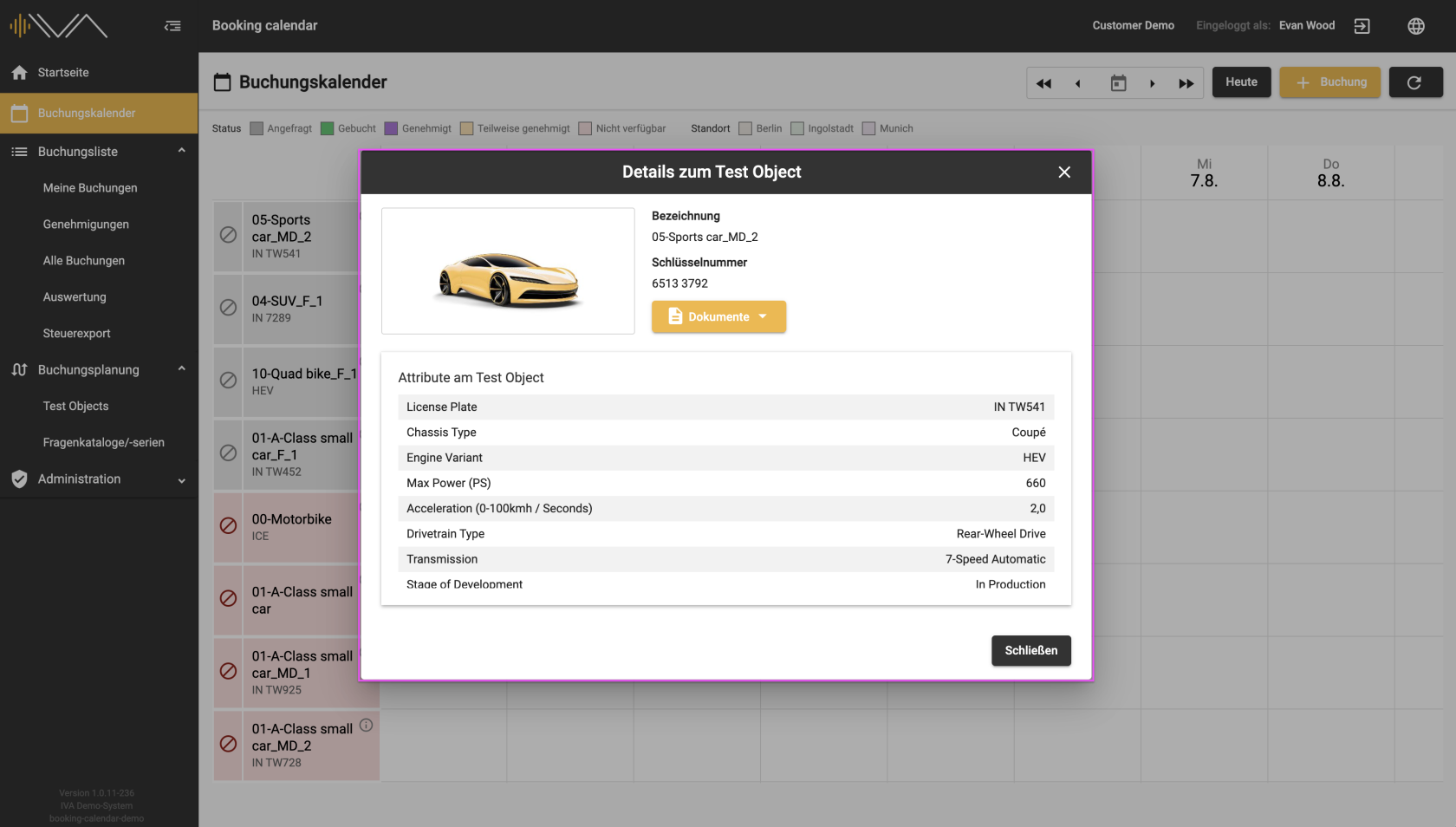
<span data-ccp-props="{"201341983":0,"335559739":0,"335559740":240}"> </span><span data-contrast="auto">Click on the “i” icon to open a separate window containing further information on the test object:</span><span data-ccp-props="{"201341983":0,"335559739":0,"335559740":240}"> </span>

- <span data-contrast="auto">Image of the test object</span><span data-ccp-props="{"201341983":0,"335559739":0,"335559740":240}"> </span>
- <span data-contrast="auto">Test object name</span><span data-ccp-props="{"201341983":0,"335559739":0,"335559740":240}"> </span>
- <span data-contrast="auto">Key Value</span><span data-ccp-props="{"201341983":0,"335559739":0,"335559740":240}"> </span>
- <span data-contrast="auto">Documents</span><span data-ccp-props="{"201341983":0,"335559739":0,"335559740":240}"> </span>
- <span data-contrast="auto">Further attributes</span><span data-ccp-props="{"201341983":0,"335559739":0,"335559740":240}"> </span>

<span data-ccp-props="{"201341983":0,"335559739":0,"335559740":240}">[![2.2.1-IVA-Buchungskalender-Fahrzeug-Details-Planer.png](https://manual.ivaluate.de/uploads/images/gallery/2024-07/scaled-1680-/2-2-1-iva-buchungskalender-fahrzeug-details-planer.png)](https://manual.ivaluate.de/uploads/images/gallery/2024-07/2-2-1-iva-buchungskalender-fahrzeug-details-planer.png)</span>

<span data-contrast="auto">In front of the vehicle tile, there is a narrow column with a “block” icon that is only visible to planners. By clicking on this icon, you can exclude a vehicle from the booking calendar or activate it. </span><span data-ccp-props="{"201341983":0,"335559739":0,"335559740":240}"> </span>

**<span data-contrast="auto">Red “Block” icon/tile</span>**<span data-contrast="auto"> = excluded from the booking calendar</span><span data-ccp-props="{"201341983":0,"335559739":0,"335559740":240}"> </span>

**<span data-contrast="auto">Gray “Block” icon</span>**<span data-contrast="auto"> = activated for the booking calendar</span><span data-ccp-props="{"201341983":0,"335559739":0,"335559740":240}"> </span>

<span data-contrast="auto">The tile of the vehicle also turns red or gray, depending on whether the vehicle is blocked or activated.</span><span data-ccp-props="{"201341983":0,"335559739":0,"335559740":240}"></span>