# EN-Booking calendar for planners

# 1. Homepage for planners


# 1.1. Menu and page navigation

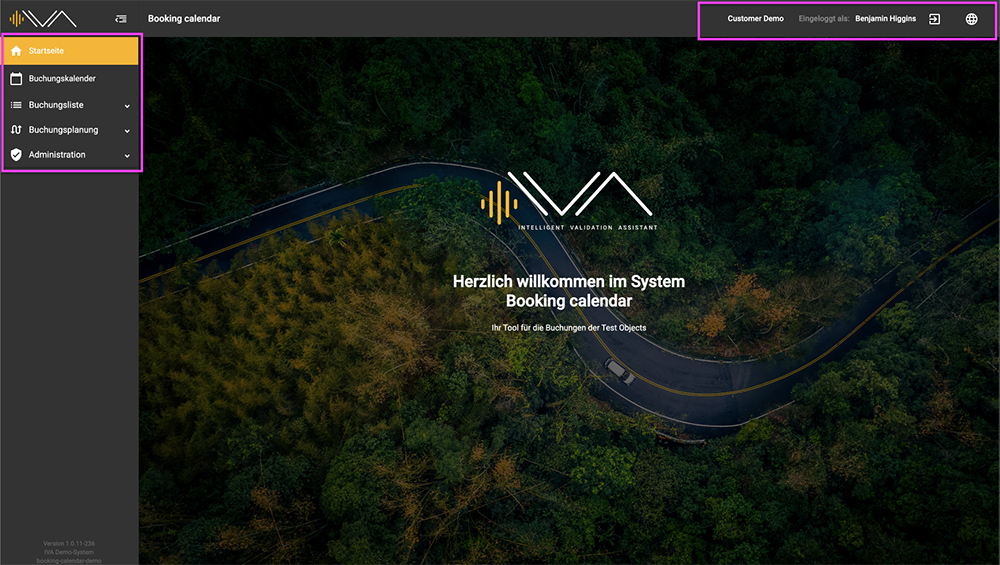
<span data-contrast="auto">You are on the homepage of the booking calendar and see the menu bar at the top and the page navigation on the left.</span><span data-ccp-props="{"201341983":0,"335559739":0,"335559740":240}"> </span>

<span data-ccp-props="{"201341983":0,"335559739":0,"335559740":240}">[![1.0-IVA-Startseite-Planer.png](https://manual.ivaluate.de/uploads/images/gallery/2024-07/scaled-1680-/1-0-iva-startseite-planer.png)](https://manual.ivaluate.de/uploads/images/gallery/2024-07/1-0-iva-startseite-planer.png)</span>

<span data-ccp-props="{"201341983":0,"335559739":0,"335559740":240}"> </span><span data-contrast="auto">In the menu at the top right, you can see:</span>

1. 1. <span data-contrast="auto">Division name (with a dropdown menu if there are several divisions available)</span>
    2. <span data-contrast="auto">Username</span>
    3. <span data-contrast="auto">“Logout” icon</span>
    4. <span data-contrast="auto">“Change Language” icon</span>

<span data-contrast="auto">Planners can see the following menu items under the page navigation:</span>

1. 1. <span data-contrast="auto">Home</span>
    2. <span data-contrast="auto">Booking calendar</span>
    3. <span data-contrast="auto">Booking list</span>
        - <span data-contrast="auto">My bookings</span>
        - <span data-contrast="auto">Approvals</span>
        - <span data-contrast="auto">All bookings</span>
        - <span data-contrast="auto">Reports</span>
        - <span data-contrast="auto">Tax export</span>
    4. <span data-contrast="auto">Booking planning</span>
        - <span data-contrast="auto">Test objects</span>
        - <span data-contrast="auto">Questionnaires / -series</span>
    5. <span data-contrast="auto">Administration</span>
        - <span data-contrast="auto">Settings</span><span data-ccp-props="{"201341983":0,"335559739":0,"335559740":240}"> </span>

# 2. Booking calendar for planners

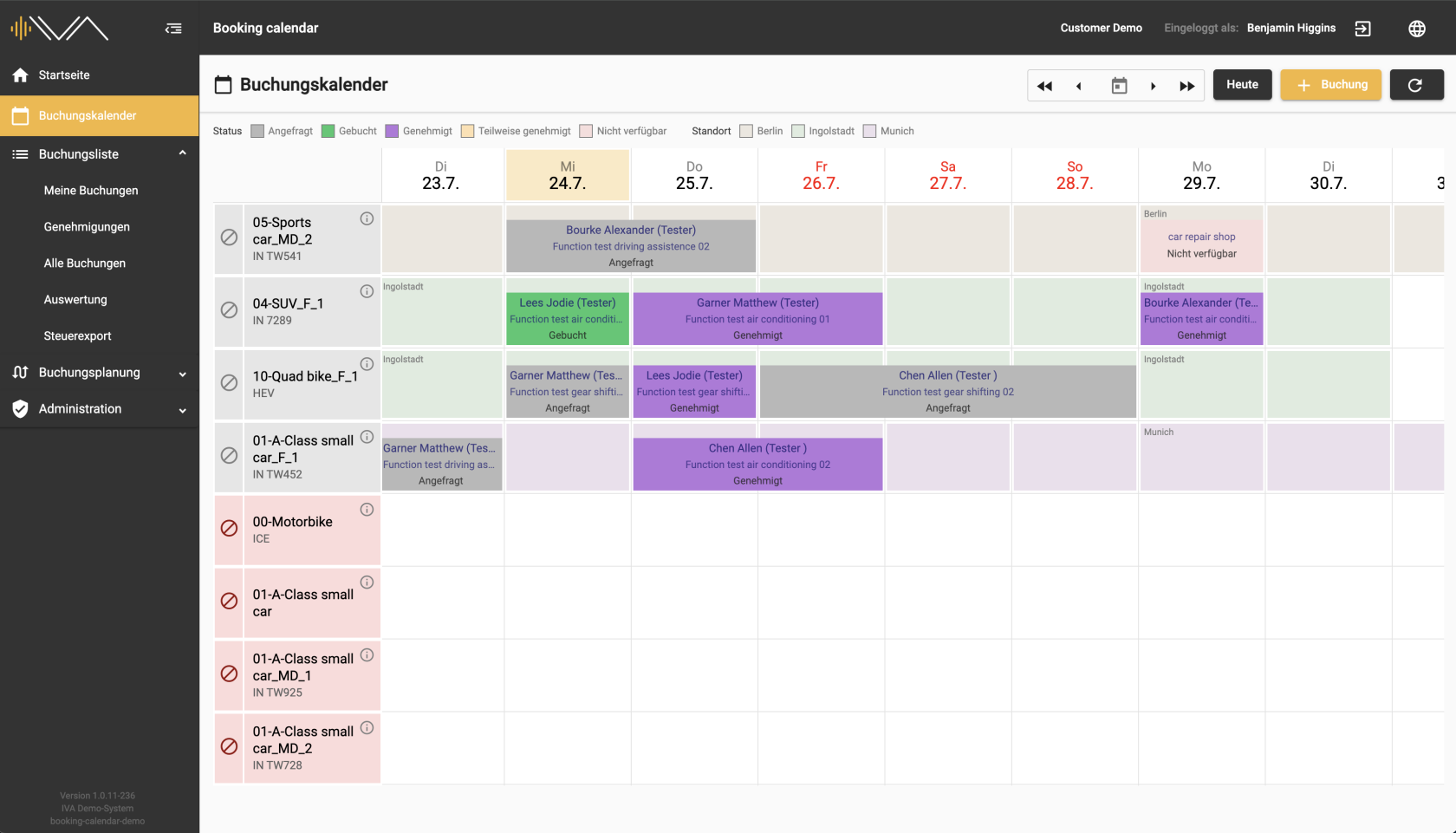
The booking calendar view is made up of:

1.the calendar view in the center consisting of:
1a. test object tiles (with the test object’s information) in the first column
1b. columns for one day each and the corresponding tiles to make the booking
2. the legend at the top left
3. the action buttons at the top right

# 2.1. Overview "Booking calendar" for planners

<span data-contrast="auto">This is the view of the booking calendar for the planner. </span><span data-ccp-props="{"201341983":0,"335559739":0,"335559740":240}"> </span>

##### **DAILY VIEW** <span data-ccp-props="{"201341983":0,"335559739":0,"335559740":240}"> </span>

<span data-contrast="auto">As a planner, you can see all **booked, requested, approved** and **unavailable** drives as well as all important information about the testers and the drive.</span><span data-ccp-props="{"201341983":0,"335559739":0,"335559740":240}"> </span>

<span data-ccp-props="{"201341983":0,"335559739":0,"335559740":240}">[![2.1.1-IVA-Buchungskalender-Buchungsübersicht-Planer.png](https://manual.ivaluate.de/uploads/images/gallery/2024-07/scaled-1680-/2-1-1-iva-buchungskalender-buchungsubersicht-planer.png)](https://manual.ivaluate.de/uploads/images/gallery/2024-07/2-1-1-iva-buchungskalender-buchungsubersicht-planer.png) </span>

- - - - - -


##### **QUARTERLY VIEW** 

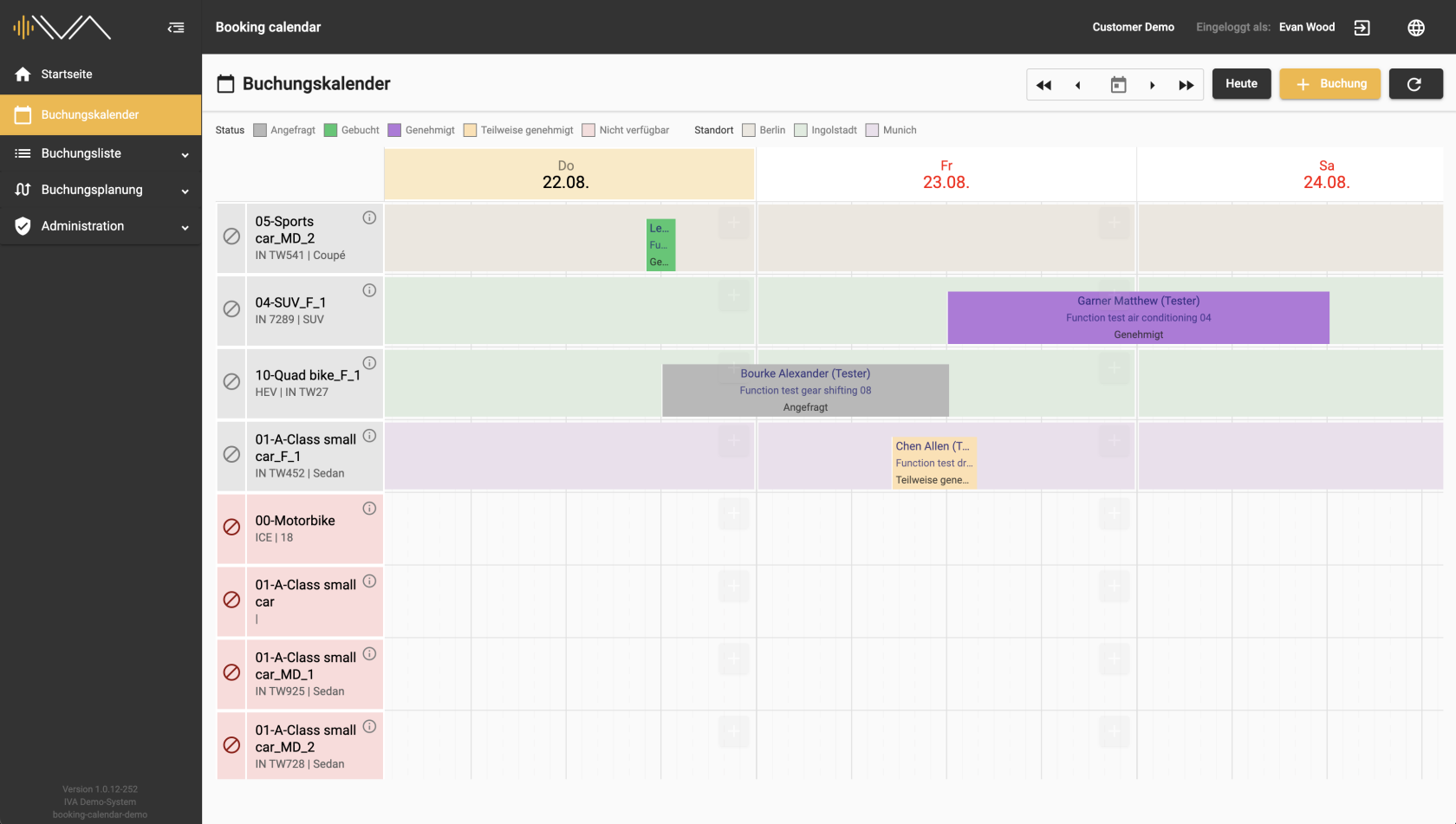
<span data-contrast="auto">The column for each day is wider here than in the “Daily view”. It is possible to book a test object for a day in a quarter-hourly cycle.</span><span data-ccp-props="{"201341983":0,"335559739":0,"335559740":240}"> </span>

<span data-ccp-props="{"201341983":0,"335559739":0,"335559740":240}">[![2.1.1-IVA-Buchungskalender-Buchungsübersicht-Planer-viertelstündlich.png](https://manual.ivaluate.de/uploads/images/gallery/2024-08/scaled-1680-/2-1-1-iva-buchungskalender-buchungsubersicht-planer-viertelstundlich.png)](https://manual.ivaluate.de/uploads/images/gallery/2024-08/2-1-1-iva-buchungskalender-buchungsubersicht-planer-viertelstundlich.png)</span>

# 2.2. Making a booking as a planner

##### **DAILY VIEW** 

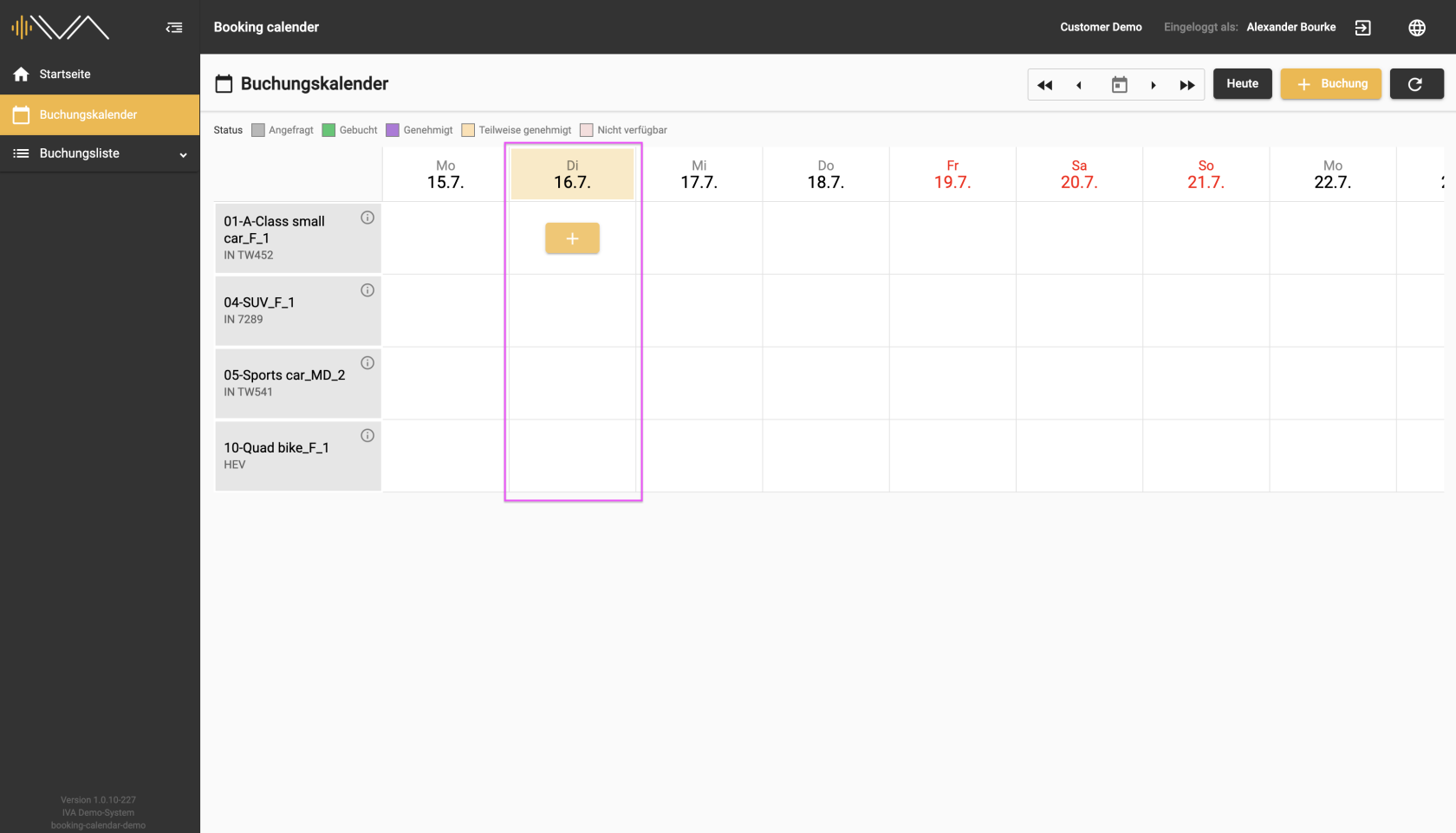
<span data-contrast="auto">The current day, weekday and date are always highlighted with a color. </span><span data-ccp-props="{"201341983":0,"335559739":0,"335559740":240}"> </span>

<span data-ccp-props="{"201341983":0,"335559739":0,"335559740":240}">[![2.1-IVA-Buchungskalender-Buchung-aktueller-Tag.png](https://manual.ivaluate.de/uploads/images/gallery/2024-07/scaled-1680-/2-1-buchungskalender-buchung-aktueller-tag.png)](https://manual.ivaluate.de/uploads/images/gallery/2024-07/2-1-buchungskalender-buchung-aktueller-tag.png)</span>

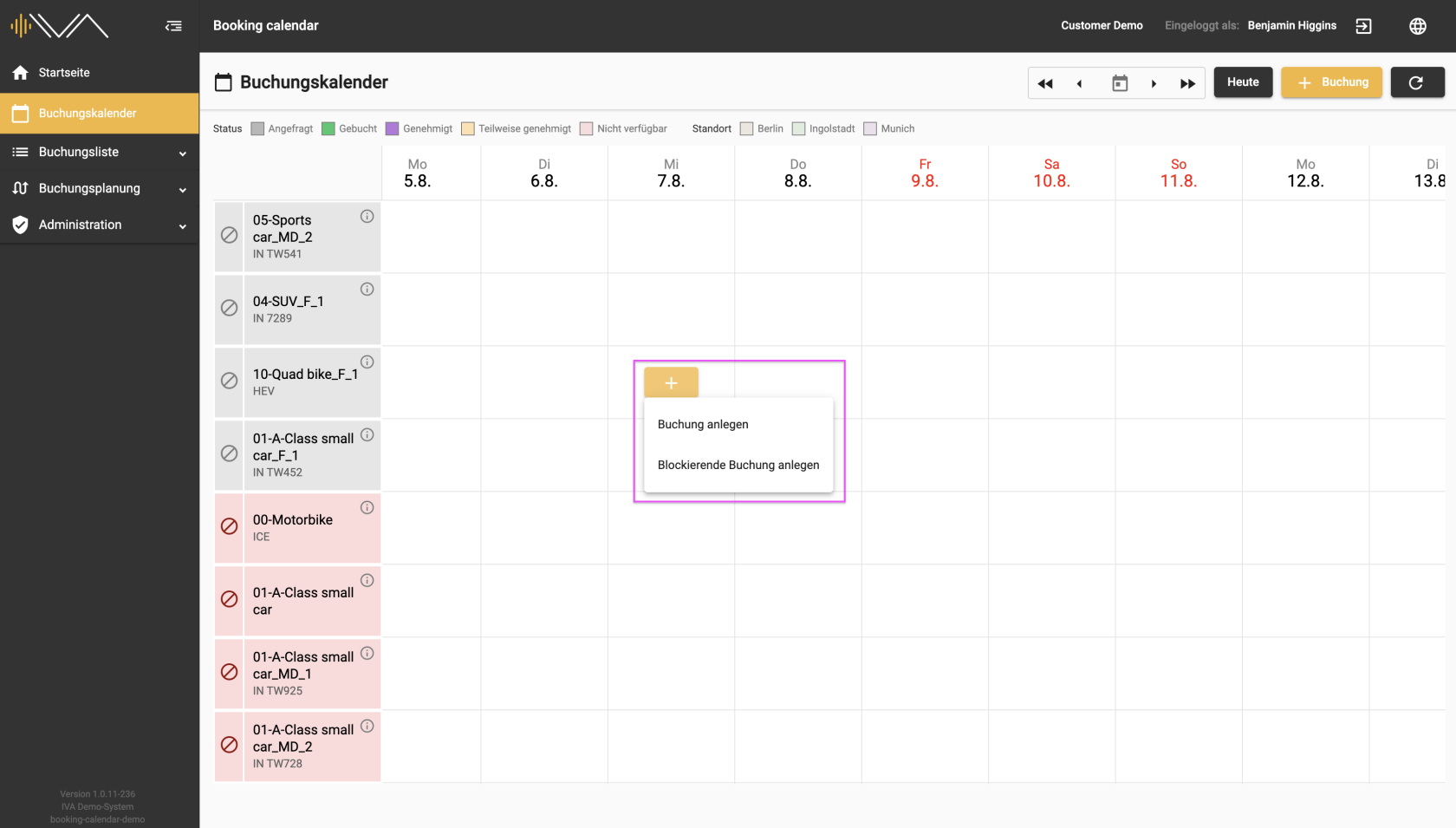
<span data-contrast="auto">Looking at the individual day, through hovering over it, you can find a “+” button. Clicking on it opens a separate pop-up “Create booking” with the following options:</span><span data-ccp-props="{"201341983":0,"335559739":0,"335559740":240}"> </span>

- <span data-contrast="auto">Create booking</span><span data-ccp-props="{"201341983":0,"335559739":0,"335559740":240}"> </span>
- <span data-contrast="auto">Create a blocking booking</span><span data-ccp-props="{"201341983":0,"335559739":0,"335559740":240}"> </span>

<span data-ccp-props="{"201341983":0,"335559739":0,"335559740":240}"> </span><span data-contrast="auto">This dropdown is only available for planners.</span><span data-ccp-props="{"201341983":0,"335559739":0,"335559740":240}"> </span>

<span data-ccp-props="{"201341983":0,"335559739":0,"335559740":240}">[![2.1.2-IVA-Buchungskalender-Buchung-anlegen-Planer.png](https://manual.ivaluate.de/uploads/images/gallery/2024-07/scaled-1680-/2-1-2-iva-buchungskalender-buchung-anlegen-planer.png)](https://manual.ivaluate.de/uploads/images/gallery/2024-07/2-1-2-iva-buchungskalender-buchung-anlegen-planer.png)</span>

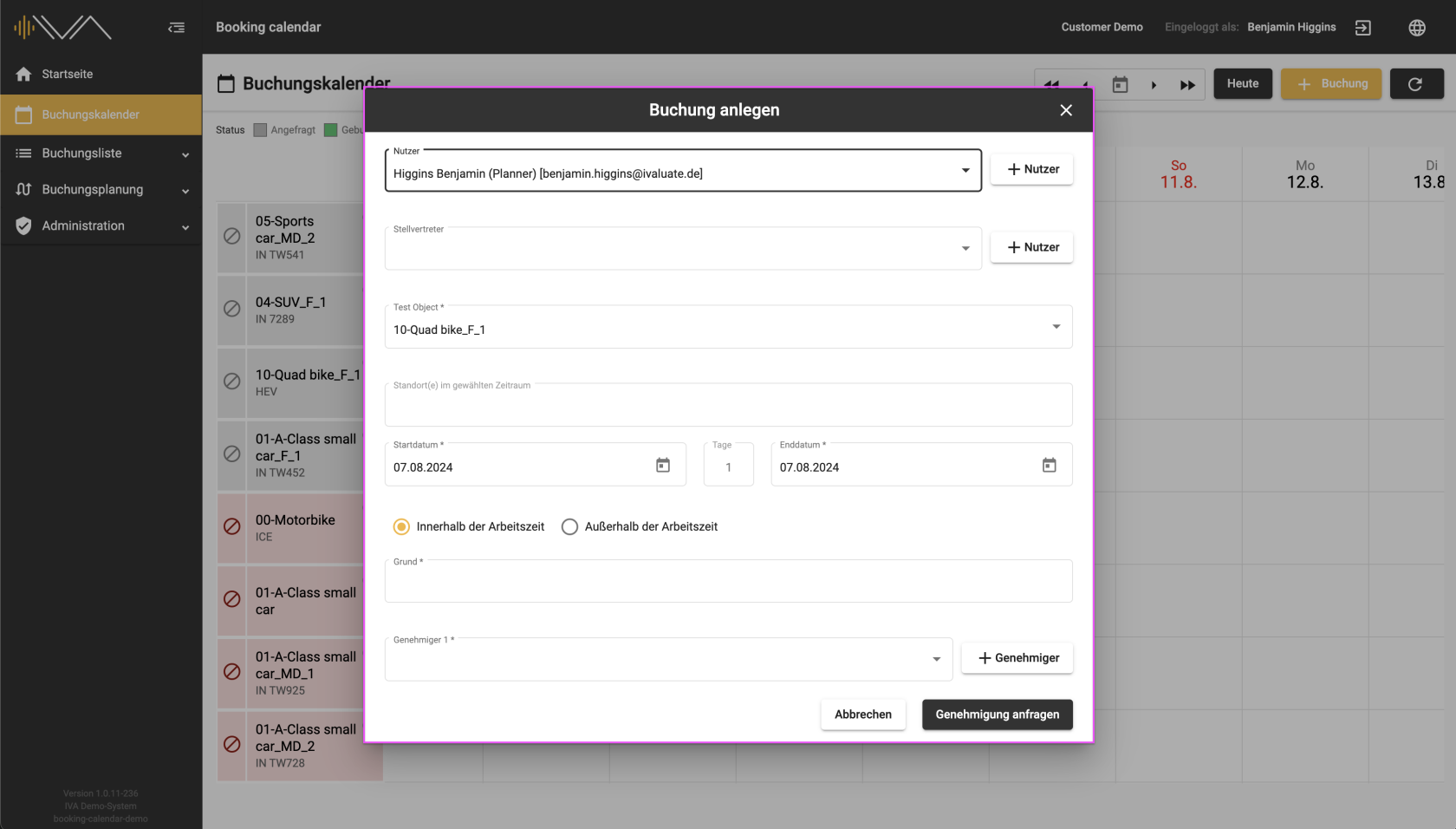
<span data-contrast="auto">Clicking on “Create booking” opens a separate pop-up with the following information:</span><span data-ccp-props="{"201341983":0,"335559739":0,"335559740":240}"> </span>

- <span data-contrast="auto">**"User"**, automatically selected</span><span data-ccp-props="{"201341983":0,"335559739":0,"335559740":240}"> </span>
- **"Delegate"**
- <span data-contrast="auto">**"Test object"**, automatically selected</span><span data-ccp-props="{"201341983":0,"335559739":0,"335559740":240}"> </span>
- <span data-contrast="auto">**"Location"**, selected if the assignment has been selected</span><span data-ccp-props="{"201341983":0,"335559739":0,"335559740":240}"> </span>
- <span data-contrast="auto">**"Start date"** and **"End date"** (automatically selected)</span><span data-ccp-props="{"201341983":0,"335559739":0,"335559740":240}"> </span>
- <span data-contrast="auto">Tax-relevant settings: </span><span data-ccp-props="{"201341983":0,"335559739":0,"335559740":240}"> </span>
    - <span data-contrast="auto">two radio buttons: **“Within”** or **“Outside working hours”** </span><span data-ccp-props="{"201341983":0,"335559738":240,"335559739":240,"335559740":240}"> </span>
    - <span data-contrast="auto">a checkbox: **“Personal company car available”** appears next to the selected radio button **“Outside working hours”** </span><span data-ccp-props="{"201341983":0,"335559738":240,"335559739":240,"335559740":240}"> </span>
    - <span data-contrast="auto">a checkbox: **“Evaluate in IVA”** an optional setting, depending on the settings in the administration</span><span data-ccp-props="{"201341983":0,"335559739":0,"335559740":240}"> </span>
- **"Reason"**<span data-ccp-props="{"201341983":0,"335559739":0,"335559740":240}"> </span>
- **"Approver 1"**<span data-ccp-props="{"201341983":0,"335559739":0,"335559740":240}"> </span>
- <span data-contrast="auto">**"Approver 2"**, for journeys outside working hours</span>

<span data-contrast="auto">[![2.1.2-IVA-Buchungskalennder-Buchung-anlegen-Details-Planer.png](https://manual.ivaluate.de/uploads/images/gallery/2024-07/scaled-1680-/2-1-2-iva-buchungskalennder-buchung-anlegen-details-planer.png)](https://manual.ivaluate.de/uploads/images/gallery/2024-07/2-1-2-iva-buchungskalennder-buchung-anlegen-details-planer.png)</span>

<span data-contrast="auto">You can change or add to your details, e.g. create a booking for another person. Then click on the “Request approval” button below. Your request will be saved and, in most cases, forwarded to the approver. Under the booked day and the corresponding vehicle tile, you will then see the tester’s name, part of the reason and the status “Requested”.</span><span data-ccp-props="{"201341983":0,"335559739":0,"335559740":240}"> </span>

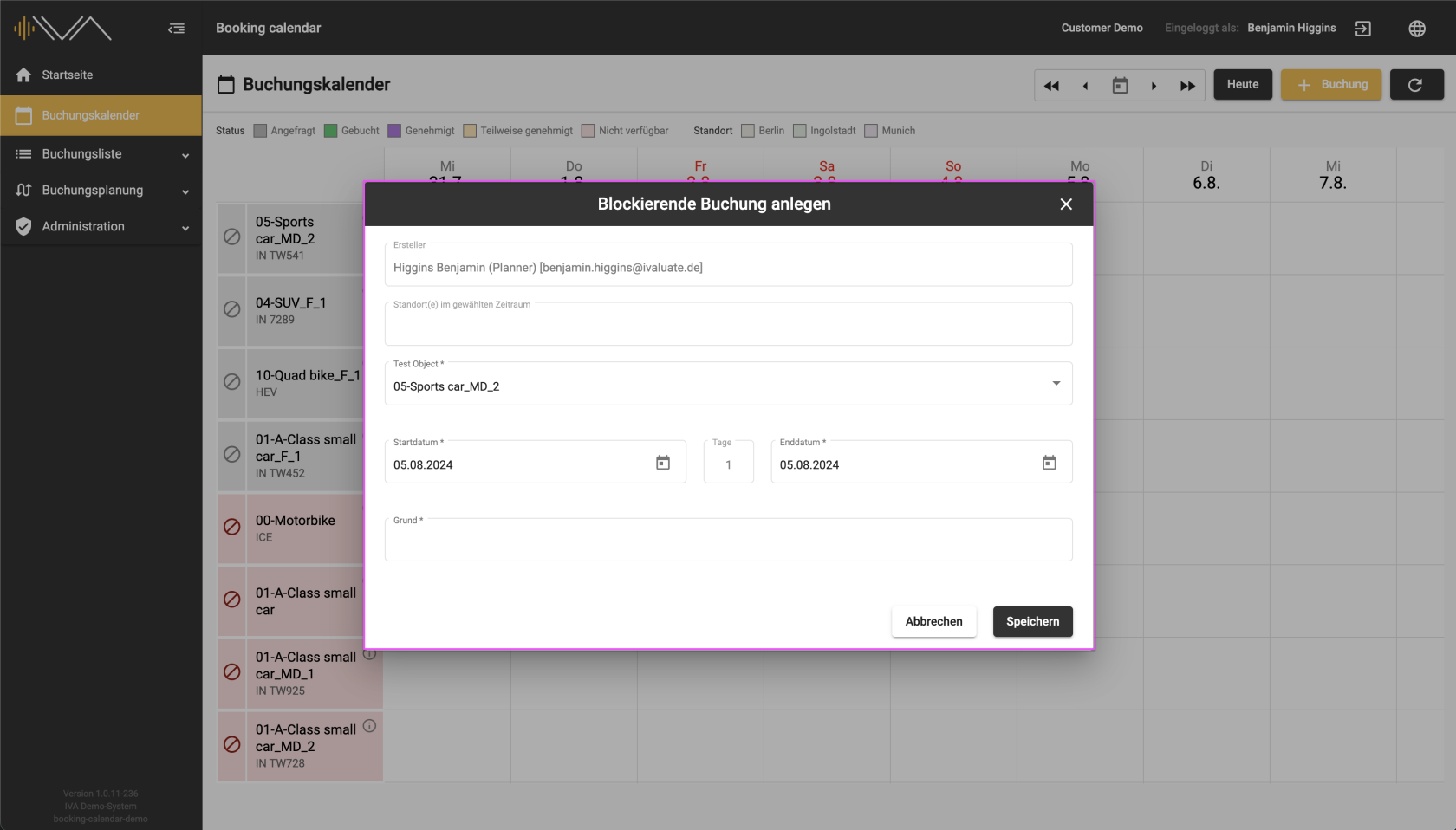
<span data-contrast="auto">Click on “Create a blocking booking” to open a separate pop-up “Edit blocking booking” with the following information:</span><span data-ccp-props="{"201341983":0,"335559739":0,"335559740":240}"> </span>

- **"Creator"**
- **"Locations"**<span data-ccp-props="{"201341983":0,"335559739":0,"335559740":240}"> </span>
- <span data-contrast="auto">"**Test object"**</span>
- <span data-contrast="auto">**"Start date"** and **"End date"**, automatically selected</span><span data-ccp-props="{"201341983":0,"335559739":0,"335559740":240}"> </span>
- **"Reason"**<span data-ccp-props="{"201341983":0,"335559739":0,"335559740":240}"> </span>

<span data-ccp-props="{"201341983":0,"335559739":0,"335559740":240}">[![2.1.2-IVA-Buchungskalender-Blockierende-Buchung-anlegen-Planer.png](https://manual.ivaluate.de/uploads/images/gallery/2024-07/scaled-1680-/2-1-2-iva-buchungskalender-blockierende-buchung-anlegen-planer.png)](https://manual.ivaluate.de/uploads/images/gallery/2024-07/2-1-2-iva-buchungskalender-blockierende-buchung-anlegen-planer.png)</span>

<span data-contrast="auto">If you then click on the “Save” button, the vehicle is blocked for the selected date.</span><span data-ccp-props="{"201341983":0,"335559739":0,"335559740":240}"> </span>

- - - - - -

<span data-contrast="auto">The second way to make a booking is by clicking on the “+ Booking” button. A separate pop-up “Create booking” will then open with the same details as above. The test object needs to be selected manually here. </span><span data-ccp-props="{"201341983":0,"335559739":0,"335559740":240}"> </span>

<span data-contrast="auto">After making a booking, you will see your requested booking in the booking list. The text line containing the booking information is colored orange. You can edit the booking afterwards by clicking on the “Pencil” icon.</span><span data-ccp-props="{"201341983":0,"335559739":0,"335559740":240}"> </span>

<span data-contrast="auto">More information can be found under the menu item “Booking list”.</span><span data-ccp-props="{"201341983":0,"335559739":0,"335559740":240}"> </span>

<span data-contrast="auto">If the test object is assigned a current location for a specific period, you will see the name of the location in a tile at the top left.</span>

<span data-contrast="auto">Mandatory information is marked with an “\*”.</span><span data-ccp-props="{"201341983":0,"335559739":0,"335559740":240}"> </span>

- - - - - -

##### **QUARTERLY VIEW** 

<span data-contrast="auto">The column for each day is wider here than in the “Daily view”. It is possible to book a test object for a day in a quarter-hourly cycle.</span><span data-ccp-props="{"201341983":0,"335559739":0,"335559740":240}"> </span>

<span data-contrast="auto">[![2.1.2-IVA-Buchungskalender-Buchung-anlegen-Planer-viertelstündlich.png](https://manual.ivaluate.de/uploads/images/gallery/2024-08/scaled-1680-/2-1-2-iva-buchungskalender-buchung-anlegen-planer-viertelstundlich.png)](https://manual.ivaluate.de/uploads/images/gallery/2024-08/2-1-2-iva-buchungskalender-buchung-anlegen-planer-viertelstundlich.png)</span>

<span data-contrast="auto">Looking at the individual day, through hovering over it, you can find a “+” button.</span><span data-ccp-props="{"201341983":0,"335559739":0,"335559740":240}"> </span>

<span data-contrast="auto">Clicking on it opens a separate pop-up “Create booking” with the following information:</span><span data-ccp-props="{"201341983":0,"335559739":0,"335559740":240}"> </span>

- <span data-contrast="auto">**"User"**, automatically selected</span><span data-ccp-props="{"201341983":0,"335559739":0,"335559740":240}"> </span>
- **"Delegate"**
- <span data-contrast="auto">**"Test object"**, automatically selected</span><span data-ccp-props="{"201341983":0,"335559739":0,"335559740":240}"> </span>
- <span data-contrast="auto">**"Location"**, selected if the assignment has been selected</span><span data-ccp-props="{"201341983":0,"335559739":0,"335559740":240}"> </span>
- <span data-contrast="auto">**"Start date"** and **"End date"**, automatically selected</span><span data-ccp-props="{"201341983":0,"335559739":0,"335559740":240}"> </span>
- <span data-contrast="auto">**“Duration”**, automatically calculated</span><span data-ccp-props="{"201341983":0,"335559739":0,"335559740":240}"> </span>
- <span data-contrast="auto">Tax-relevant settings: </span><span data-ccp-props="{"201341983":0,"335559739":0,"335559740":240}"> </span>
    - <span data-contrast="auto">two radio buttons: **“Within”** or **“Outside working hours”** </span><span data-ccp-props="{"201341983":0,"335559738":240,"335559739":240,"335559740":240}"> </span>
    - <span data-contrast="auto">a checkbox: **“Personal company car available”** appears next to the selected radio button **“Outside working hours”**</span>
    - <span data-contrast="auto">a checkbox: **“Evaluate in IVA”** an optional setting, depending on the settings in the administration</span><span data-ccp-props="{"201341983":0,"335559739":0,"335559740":240}"> </span>
- **"Reason"**
- **"Approver 1"**<span data-ccp-props="{"201341983":0,"335559739":0,"335559740":240}"> </span>
- <span data-contrast="auto">**"Approver 2"**, for drives outside working hours</span><span data-ccp-props="{"201341983":0,"335559739":0,"335559740":240}"> </span>

<span data-contrast="auto">The checkbox: **“Evaluate in IVA”** depends on the settings in the administration and is optionally available.</span><span data-ccp-props="{"201341983":0,"335559739":0,"335559740":240}"> </span>

<span data-contrast="auto">If the checkbox is selected, a test is created in IVA.</span>

# 2.3. Test object tile for planners

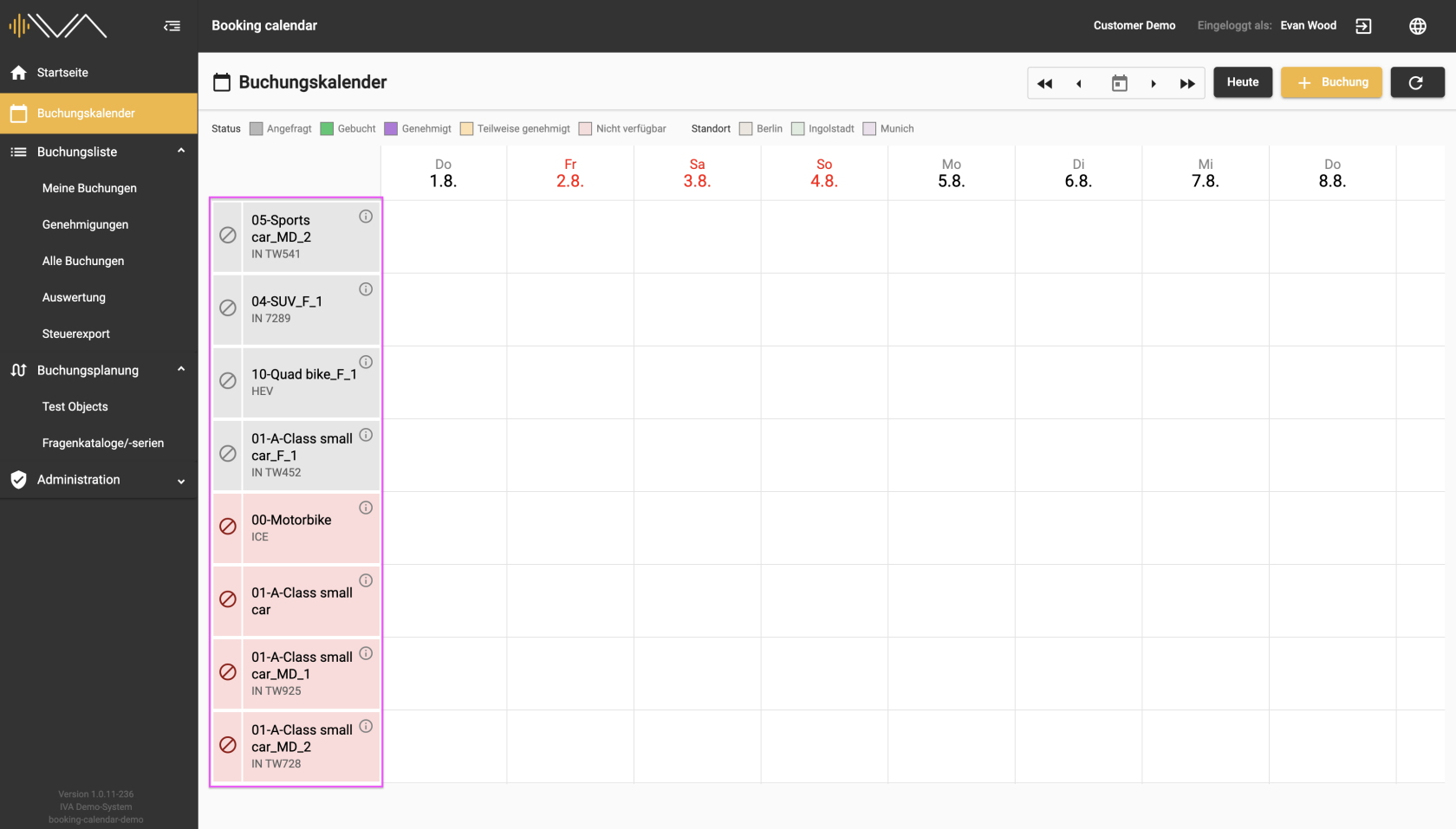
<span data-contrast="auto">In the calendar, you will find the list of available test objects in the first column on the left and the respective day view.</span><span data-ccp-props="{"201341983":0,"335559739":0,"335559740":240}"> </span>

<span data-ccp-props="{"201341983":0,"335559739":0,"335559740":240}">[![2.2.1-Buchungskalender-Fahrzeuge-Übersicht-Planer.png](https://manual.ivaluate.de/uploads/images/gallery/2024-07/scaled-1680-/2-2-1-buchungskalender-fahrzeuge-ubersicht-planer.png)](https://manual.ivaluate.de/uploads/images/gallery/2024-07/2-2-1-buchungskalender-fahrzeuge-ubersicht-planer.png)</span>

<span data-contrast="auto">The two most important pieces of information are displayed in the test object tile:</span><span data-ccp-props="{"201341983":0,"335559739":0,"335559740":240}"> </span>

- <span data-contrast="auto">Test object **name** </span><span data-ccp-props="{"201341983":0,"335559739":0,"335559740":240}"> </span>
- <span data-contrast="auto">The first two **attributes**</span><span data-ccp-props="{"201341983":0,"335559739":0,"335559740":240}"> </span>

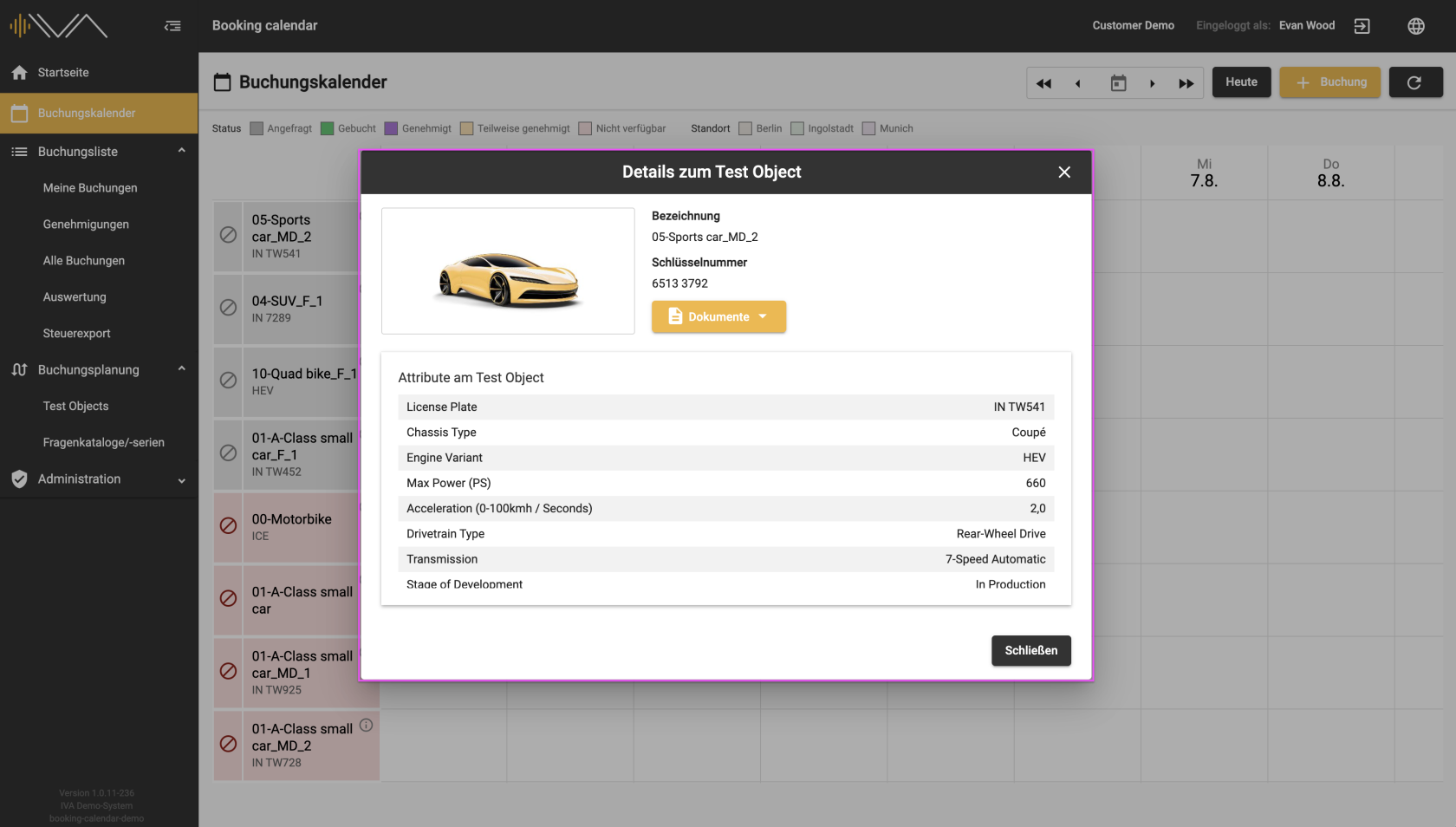
<span data-ccp-props="{"201341983":0,"335559739":0,"335559740":240}"> </span><span data-contrast="auto">Click on the “i” icon to open a separate window containing further information on the test object:</span><span data-ccp-props="{"201341983":0,"335559739":0,"335559740":240}"> </span>

- <span data-contrast="auto">Image of the test object</span><span data-ccp-props="{"201341983":0,"335559739":0,"335559740":240}"> </span>
- <span data-contrast="auto">Test object name</span><span data-ccp-props="{"201341983":0,"335559739":0,"335559740":240}"> </span>
- <span data-contrast="auto">Key Value</span><span data-ccp-props="{"201341983":0,"335559739":0,"335559740":240}"> </span>
- <span data-contrast="auto">Documents</span><span data-ccp-props="{"201341983":0,"335559739":0,"335559740":240}"> </span>
- <span data-contrast="auto">Further attributes</span><span data-ccp-props="{"201341983":0,"335559739":0,"335559740":240}"> </span>

<span data-ccp-props="{"201341983":0,"335559739":0,"335559740":240}">[![2.2.1-IVA-Buchungskalender-Fahrzeug-Details-Planer.png](https://manual.ivaluate.de/uploads/images/gallery/2024-07/scaled-1680-/2-2-1-iva-buchungskalender-fahrzeug-details-planer.png)](https://manual.ivaluate.de/uploads/images/gallery/2024-07/2-2-1-iva-buchungskalender-fahrzeug-details-planer.png)</span>

<span data-contrast="auto">In front of the vehicle tile, there is a narrow column with a “block” icon that is only visible to planners. By clicking on this icon, you can exclude a vehicle from the booking calendar or activate it. </span><span data-ccp-props="{"201341983":0,"335559739":0,"335559740":240}"> </span>

**<span data-contrast="auto">Red “Block” icon/tile</span>**<span data-contrast="auto"> = excluded from the booking calendar</span><span data-ccp-props="{"201341983":0,"335559739":0,"335559740":240}"> </span>

**<span data-contrast="auto">Gray “Block” icon</span>**<span data-contrast="auto"> = activated for the booking calendar</span><span data-ccp-props="{"201341983":0,"335559739":0,"335559740":240}"> </span>

<span data-contrast="auto">The tile of the vehicle also turns red or gray, depending on whether the vehicle is blocked or activated.</span><span data-ccp-props="{"201341983":0,"335559739":0,"335559740":240}"></span>

# 2.4. Legend

<span data-contrast="auto">The legend is located below the menu at the top left. It helps you find your way around the booking calendar and explains the color coding of the status and location.</span><span data-ccp-props="{"201341983":0,"335559739":0,"335559740":240}"> </span>

<span data-ccp-props="{"201341983":0,"335559739":0,"335559740":240}"> </span><span data-contrast="auto">The following statuses can be defined for “Status”:</span><span data-ccp-props="{"201341983":0,"335559739":0,"335559740":240}"> </span>

- <span data-contrast="auto">Requested</span><span data-ccp-props="{"201341983":0,"335559739":0,"335559740":240}"> </span>
- <span data-contrast="auto">Booked</span><span data-ccp-props="{"201341983":0,"335559739":0,"335559740":240}"> </span>
- <span data-contrast="auto">Approved</span><span data-ccp-props="{"201341983":0,"335559739":0,"335559740":240}"> </span>
- <span data-contrast="auto">Partially approved</span><span data-ccp-props="{"201341983":0,"335559739":0,"335559740":240}"> </span>
- <span data-contrast="auto">Not available</span><span data-ccp-props="{"201341983":0,"335559739":0,"335559740":240}"> </span>

<span data-ccp-props="{"201341983":0,"335559739":0,"335559740":240}"> </span><span data-contrast="auto">Further information can be found here: </span><span data-contrast="none" style="background-color: #f1c40f;">Status</span><span data-ccp-props="{"201341983":0,"335559739":0,"335559740":240}"> </span>

<span data-ccp-props="{"201341983":0,"335559739":0,"335559740":240}"> </span><span data-contrast="auto">All locations that have been made available by the administrator are listed under the location.</span><span data-ccp-props="{"201341983":0,"335559739":0,"335559740":240}"> </span>

<span data-contrast="auto">The locations defined by the administrator are displayed under “Location”.</span><span data-ccp-props="{"201341983":0,"335559739":0,"335559740":240}"></span>

# 2.5. Date picker

<span data-contrast="auto">At the top next to the buttons there is a date picker and four arrows that allow you to quickly select a date and skip through certain time intervals.</span>

# 3. Booking list for planners

There are 5 submenu items under the booking list, each with the corresponding details: 
3.1 My bookings 
3.2 Approvals 
3.3 All bookings 
3.4 Reports 
3.5 Tax export

# 3.1. Overview "My bookings" for planners

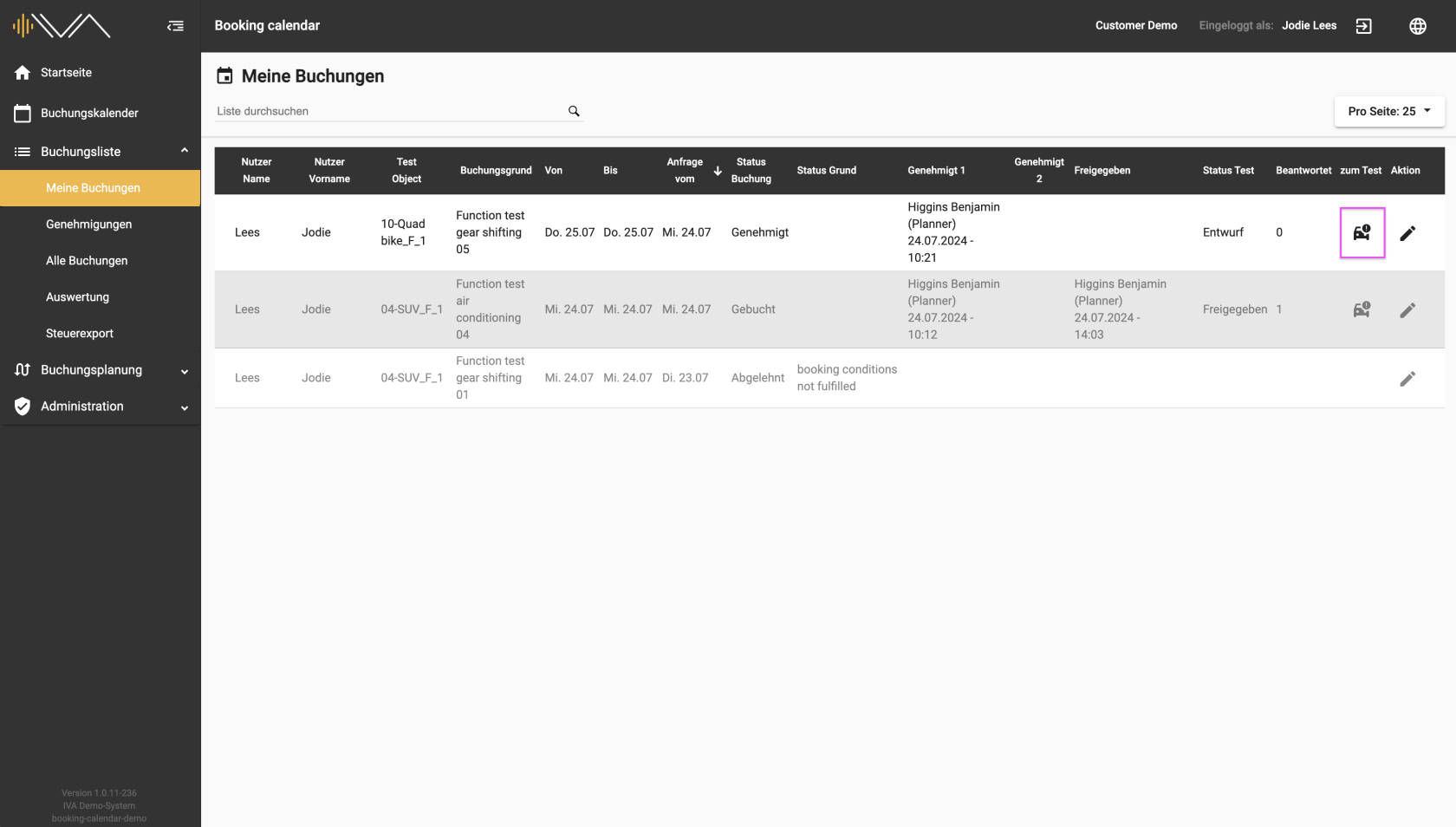
<span data-contrast="auto">The booking list provides you with an overview of all bookings that you have requested or booked. The list is made up of several columns. </span><span data-ccp-props="{"201341983":0,"335559739":0,"335559740":240}"> </span>

<span data-contrast="auto">On the left, there is a **“Test object”** column in which the test object name and the first two attributes are listed. </span><span data-ccp-props="{"201341983":0,"335559739":0,"335559740":240}"> </span>

<span data-contrast="auto">On the far right is the column: **“To test”**. If a drive has been approved, the column is filled with a “Car” icon. Clicking on the icon takes you to the corresponding test, i.e. a new tab opens in the tester web application.</span><span data-ccp-props="{"201341983":0,"335559739":0,"335559740":240}"> </span><span data-contrast="auto"> </span><span data-ccp-props="{"201341983":0,"335559739":0,"335559740":240}"> </span>

<span data-contrast="auto">[![3.1.1-IVA-Buchungskalender-Buchungsliste-Meine-Buchungen-Planer.png](https://manual.ivaluate.de/uploads/images/gallery/2024-07/scaled-1680-/3-1-1-iva-buchungskalender-buchungsliste-meine-buchungen-planer.png)](https://manual.ivaluate.de/uploads/images/gallery/2024-07/3-1-1-iva-buchungskalender-buchungsliste-meine-buchungen-planer.png)</span>

<span data-contrast="auto">The **“Status test”** and **“Answered”** columns can be sorted.</span><span data-ccp-props="{"201341983":0,"335559739":0,"335559740":240}"> </span>

<span data-contrast="auto">The tester only sees this one submenu item. All other submenu items listed below it are invisible to the tester.</span>

# 3.2. Approvals

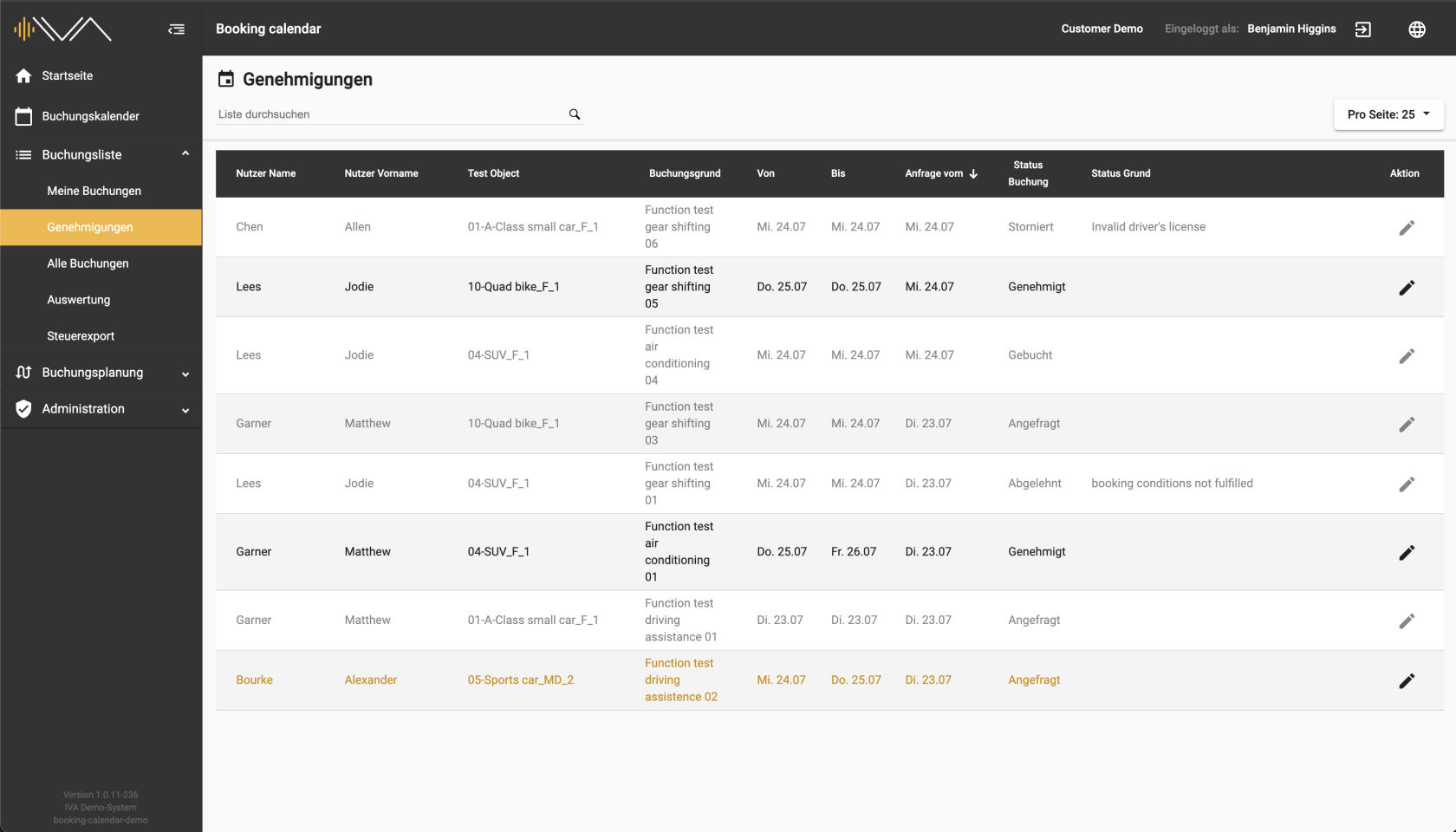
<span data-contrast="auto">If you have been assigned the Approver role, you will find all booking requests an their statuses under this menu item: </span><span data-ccp-props="{"201341983":0,"335559739":0,"335559740":240}"> </span>

<span data-contrast="auto">The bookings can have following statuses:</span><span data-ccp-props="{"201341983":0,"335559739":0,"335559740":240}"> </span>

- <span data-contrast="auto">Approved </span><span data-ccp-props="{"201341983":0,"335559739":0,"335559740":240}"> </span>
- <span data-contrast="auto">Requested</span><span data-ccp-props="{"201341983":0,"335559739":0,"335559740":240}"> </span>
- <span data-contrast="auto">Booked</span><span data-ccp-props="{"201341983":0,"335559739":0,"335559740":240}"> </span>
- <span data-contrast="auto">Canceled</span><span data-ccp-props="{"201341983":0,"335559739":0,"335559740":240}"> </span>
- <span data-contrast="auto">Rejected</span><span data-ccp-props="{"201341983":0,"335559739":0,"335559740":240}"> </span>

<span data-ccp-props="{"201341983":0,"335559739":0,"335559740":240}"><span style="font-family: Roboto;">[![3.1.2-IVA-Buchungskalender-Genehmigungen-Planer.png](https://manual.ivaluate.de/uploads/images/gallery/2024-07/scaled-1680-/3-1-2-iva-buchungskalender-genehmigungen-planer.png)](https://manual.ivaluate.de/uploads/images/gallery/2024-07/3-1-2-iva-buchungskalender-genehmigungen-planer.png)</span></span>

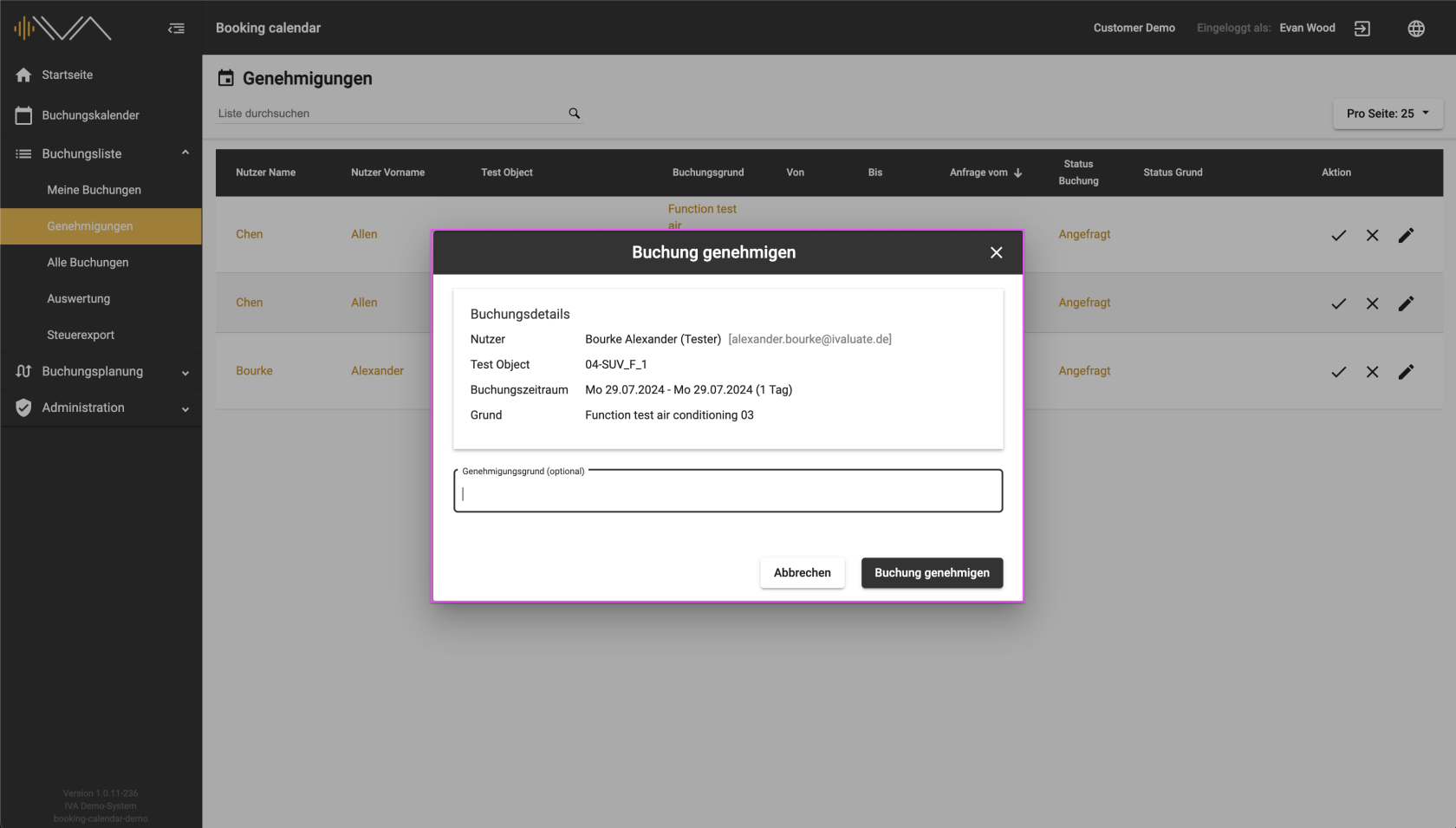
<span data-contrast="auto">To approve a booking, please click on the “pencil” icon. A separate pop-up will open: “Approve booking”. Here you can approve the booking and optionally enter the reason for approval.</span>

<span data-contrast="auto">[![3.2.1-IVA-Buchungskalender-Buchungsliste-Genehmigungen-Detail.png](https://manual.ivaluate.de/uploads/images/gallery/2024-07/scaled-1680-/3-2-1-iva-buchungskalender-buchungsliste-genehmigungen-detail.png)](https://manual.ivaluate.de/uploads/images/gallery/2024-07/3-2-1-iva-buchungskalender-buchungsliste-genehmigungen-detail.png)</span>

The booking is approved by clicking on the “Approve booking” button.

# 3.3. All bookings

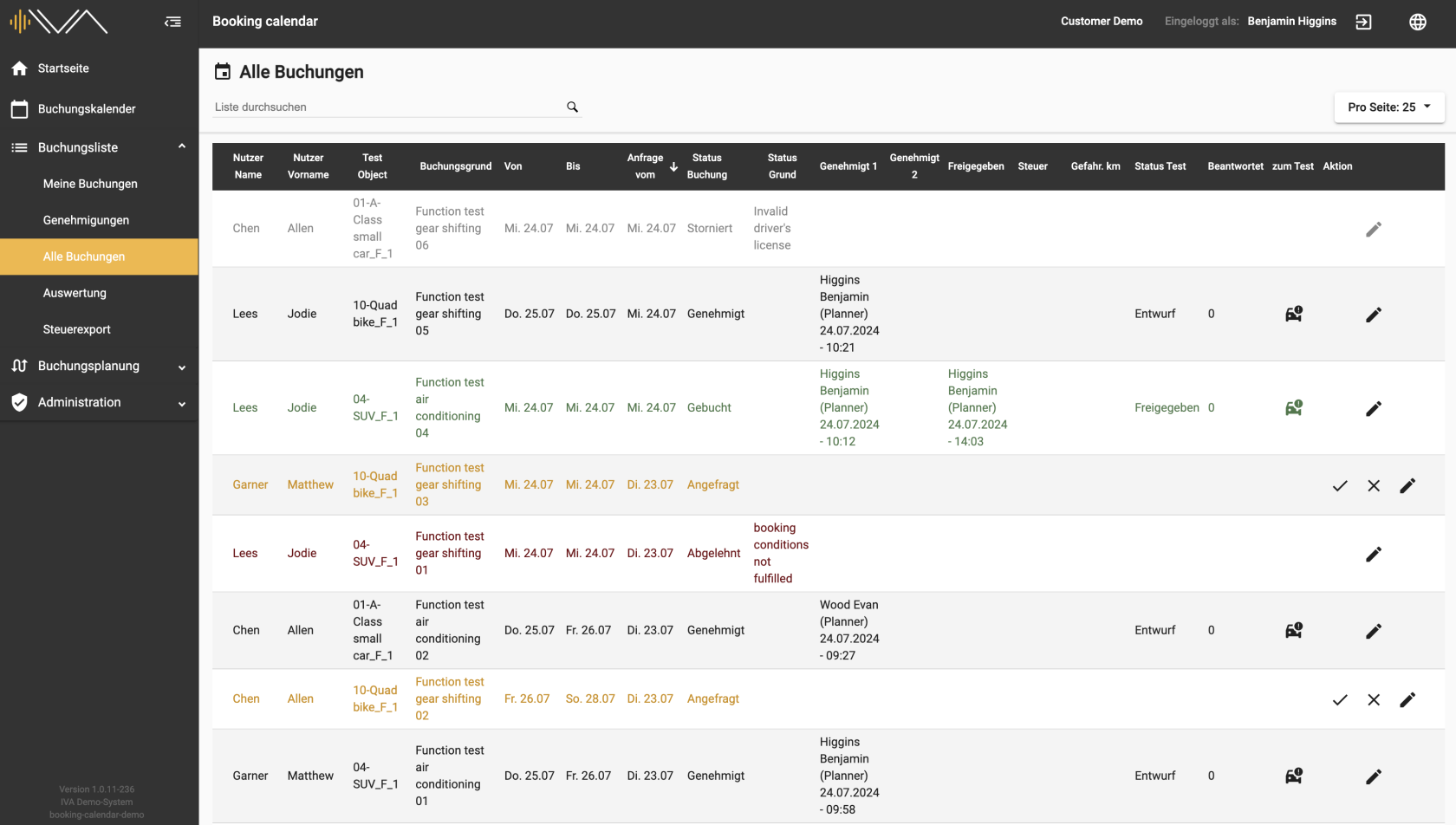
<span data-contrast="auto">Here you can see all the bookings that have been requested in this division. The various <span style="background-color: #f1c40f;">statuses</span> can be viewed under the **“Booking status”** column. Here you can subsequently enter the value of the **“kilometers driven”** and edit the reason for a blocking booking.</span><span data-ccp-props="{"201341983":0,"335559739":0,"335559740":240}"> </span><span data-ccp-props="{"201341983":0,"335559739":0,"335559740":240}"> </span>

<span data-contrast="auto">On the far right is the column: **“To test”**. If a drive has been approved, the column is filled with a “Car” icon. Clicking on the icon takes you to the corresponding test, i.e. a new tab opens in the tester web application.</span><span data-ccp-props="{"201341983":0,"335559739":0,"335559740":240}"> </span>

<span data-ccp-props="{"201341983":0,"335559739":0,"335559740":240}"><span class="EOP SCXW77717 BCX4" data-ccp-props="{"201341983":0,"335559739":0,"335559740":240}">[![3.3.1-IVA-Buchungskalender-Alle-Buchungen-Planer.png](https://manual.ivaluate.de/uploads/images/gallery/2024-07/scaled-1680-/3-3-1-iva-buchungskalender-alle-buchungen-planer.png)](https://manual.ivaluate.de/uploads/images/gallery/2024-07/3-3-1-iva-buchungskalender-alle-buchungen-planer.png)</span></span>

<span data-contrast="auto">The **“Status test”** and **“Finished”** columns can be sorted.</span>

# 3.5. Tax export

<span data-contrast="auto">Here you can create a monthly export if the “Tax” column is filled in under the “All bookings” menu item and values are entered in the “Kilometers driven” column. </span><span data-ccp-props="{"201341983":0,"335559739":0,"335559740":240}"> </span>

<span data-ccp-props="{"201341983":0,"335559739":0,"335559740":240}"> </span><span data-contrast="auto">Simply select a month and the corresponding year and click on the “Create export” button at the bottom right. An Excel file will now be generated and downloaded.</span><span data-ccp-props="{"201341983":0,"335559739":0,"335559740":240}"> </span>

<span data-contrast="auto">If errors are found, a manual change must be made in the corresponding line under “All bookings”.</span><span data-ccp-props="{"201341983":0,"335559739":0,"335559740":240}"></span>

# 4. Booking planning

Planning for 
4.1. vehicles and 
4.2. questionnaires/-series 
can be performed in the booking planning.

# 4.1. Test objects

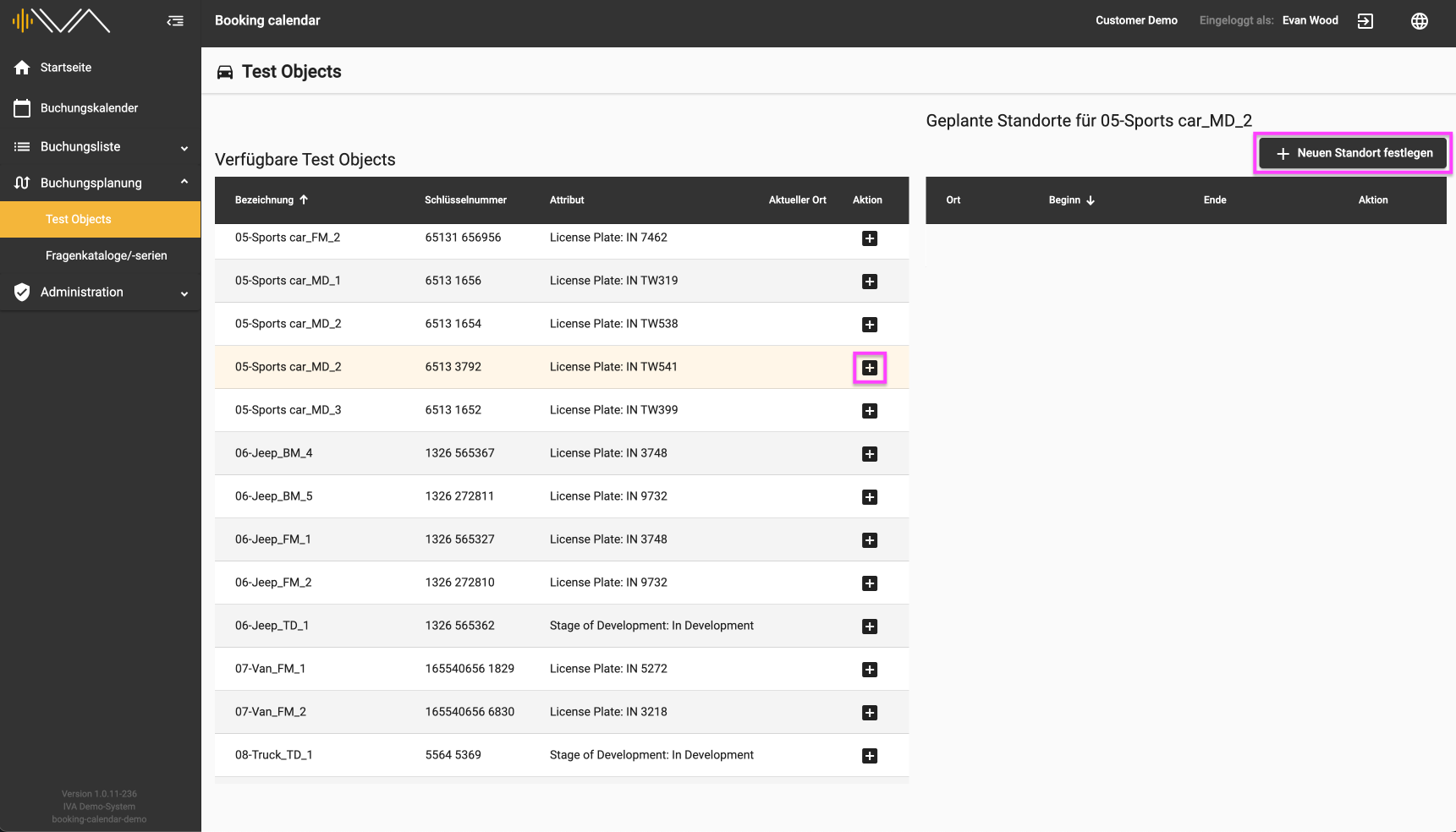
<span data-contrast="auto">Under the menu item “Test objects” you will find two tables. On the left is a table with “Available test objects”. </span><span data-ccp-props="{"201341983":0,"335559739":0,"335559740":240}"> </span>

<span data-ccp-props="{"201341983":0,"335559739":0,"335559740":240}">[![4.1-IVA-Buchungskalender-Buchungsplanung-Testobjekte-Standorte.png](https://manual.ivaluate.de/uploads/images/gallery/2024-07/scaled-1680-/QPY4-1-iva-buchungskalender-buchungsplanung-testobjekte-standorte.png)](https://manual.ivaluate.de/uploads/images/gallery/2024-07/QPY4-1-iva-buchungskalender-buchungsplanung-testobjekte-standorte.png)</span>

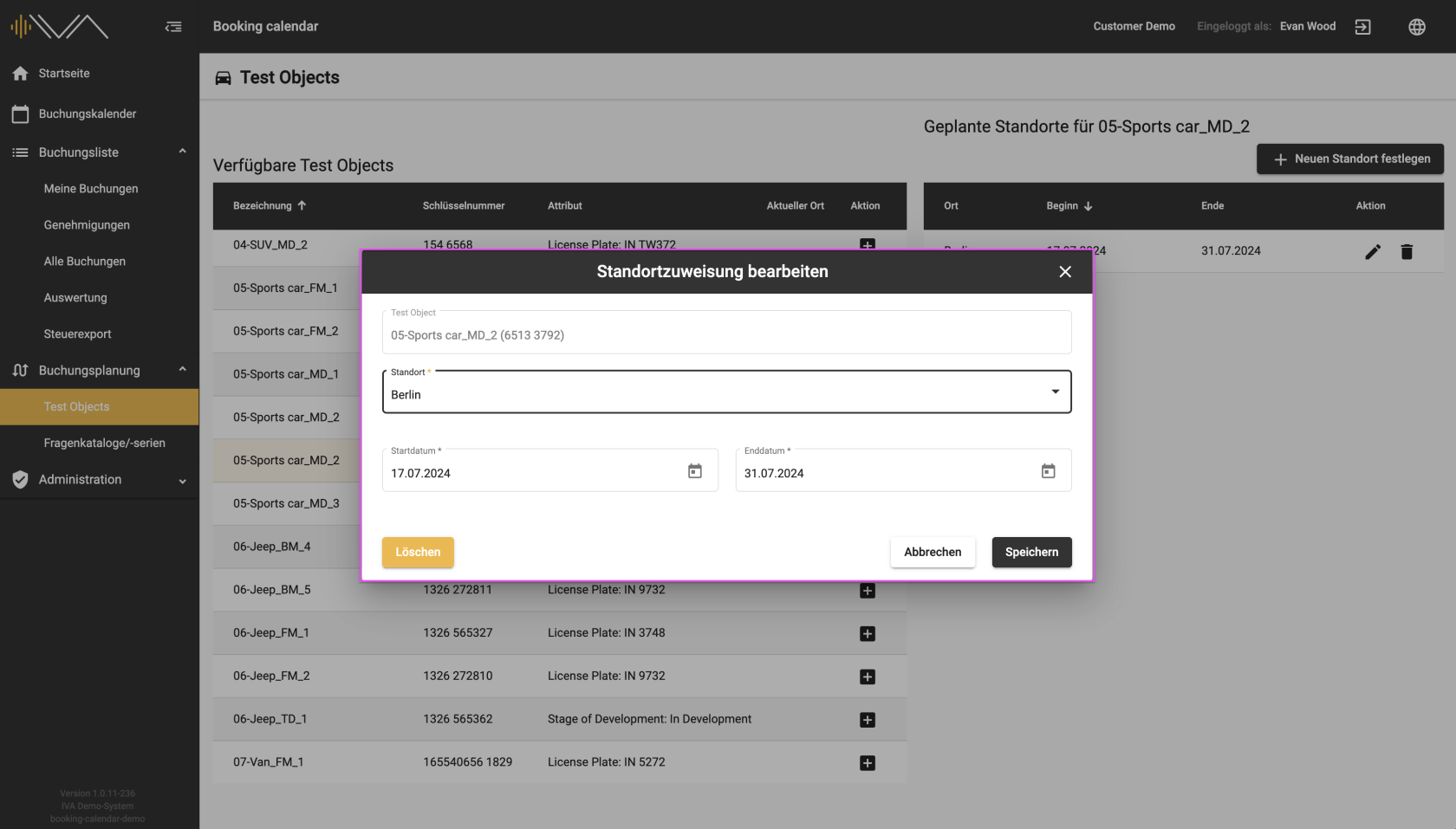
<span data-contrast="auto">If you click on a row with a test object, the tile is colored light yellow and you can perform an action by clicking on the “+” icon or by clicking on the “+ Set new location” button at the top right. A new window then appears in which you can assign the “Location” and the “Start” and “End date” to the corresponding vehicle.</span><span data-ccp-props="{"201341983":0,"335559739":0,"335559740":240}"> </span>

<span data-ccp-props="{"201341983":0,"335559739":0,"335559740":240}">[![4.1-IVA-Buchungskalender-Buchungsplanung-Testobjekte-Standortzuweisung-bearbeiten.png](https://manual.ivaluate.de/uploads/images/gallery/2024-07/scaled-1680-/4-1-iva-buchungskalender-buchungsplanung-testobjekte-standortzuweisung-bearbeiten.png)](https://manual.ivaluate.de/uploads/images/gallery/2024-07/4-1-iva-buchungskalender-buchungsplanung-testobjekte-standortzuweisung-bearbeiten.png)</span>

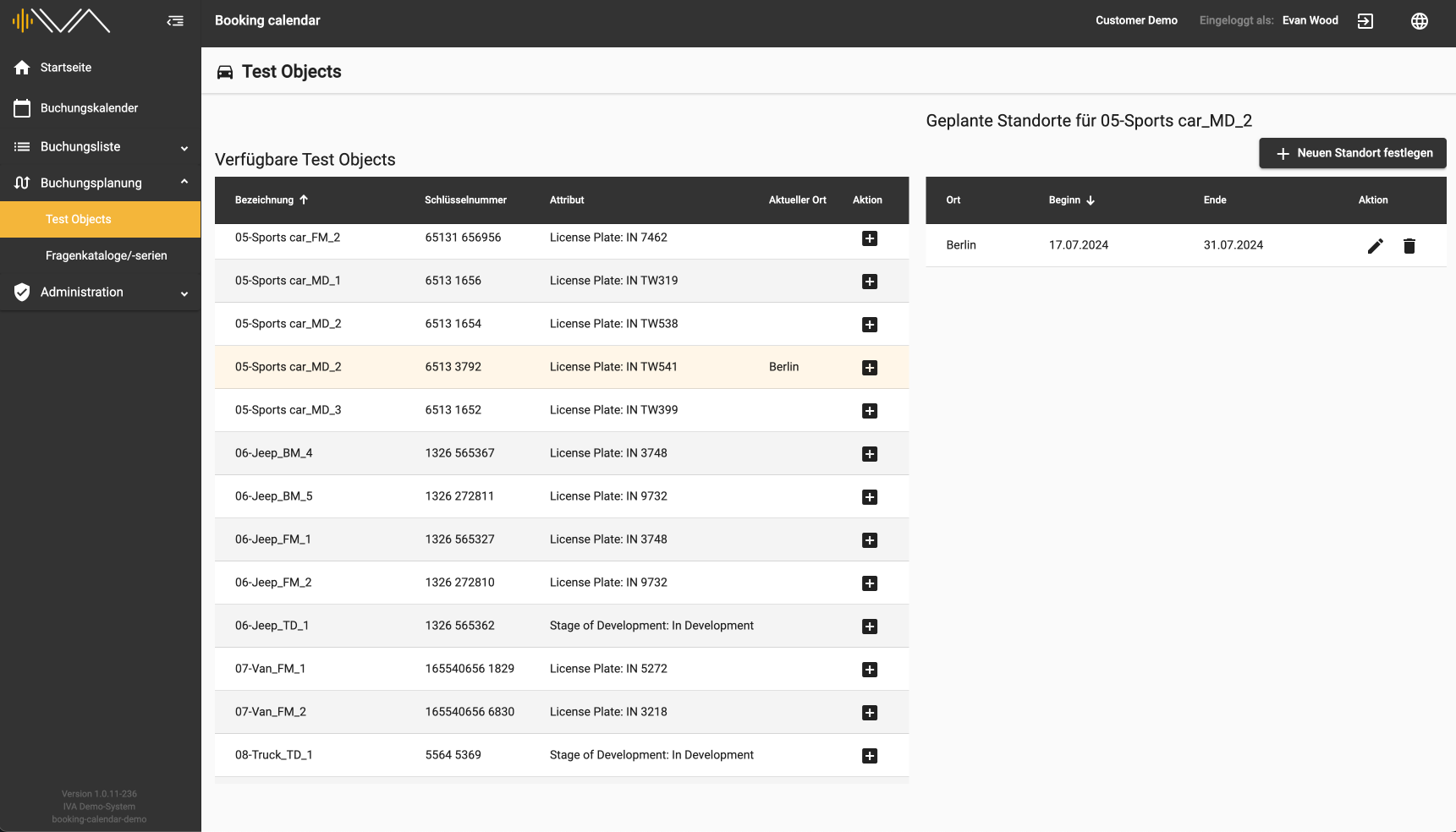
<span data-contrast="auto">A new row then appears with the location, start and end dates, which you can edit or delete.</span><span data-ccp-props="{"201341983":0,"335559739":0,"335559740":240}"> </span>

<span data-ccp-props="{"201341983":0,"335559739":0,"335559740":240}"><span style="font-family: Roboto;">[![4.1-IVA-Buchungskalender-Buchungsplanung-Testobjekte-Standorte.png](https://manual.ivaluate.de/uploads/images/gallery/2024-07/scaled-1680-/4-1-iva-buchungskalender-buchungsplanung-testobjekte-standorte.png)](https://manual.ivaluate.de/uploads/images/gallery/2024-07/4-1-iva-buchungskalender-buchungsplanung-testobjekte-standorte.png)</span></span>

<span data-contrast="auto">This allows you to assign “Planned locations” to each vehicle individually. These locations are automatically assigned in the booking calendar when creating a booking.</span><span data-ccp-props="{"201341983":0,"335559739":0,"335559740":240}"></span>

# 4.2. Questionnaires

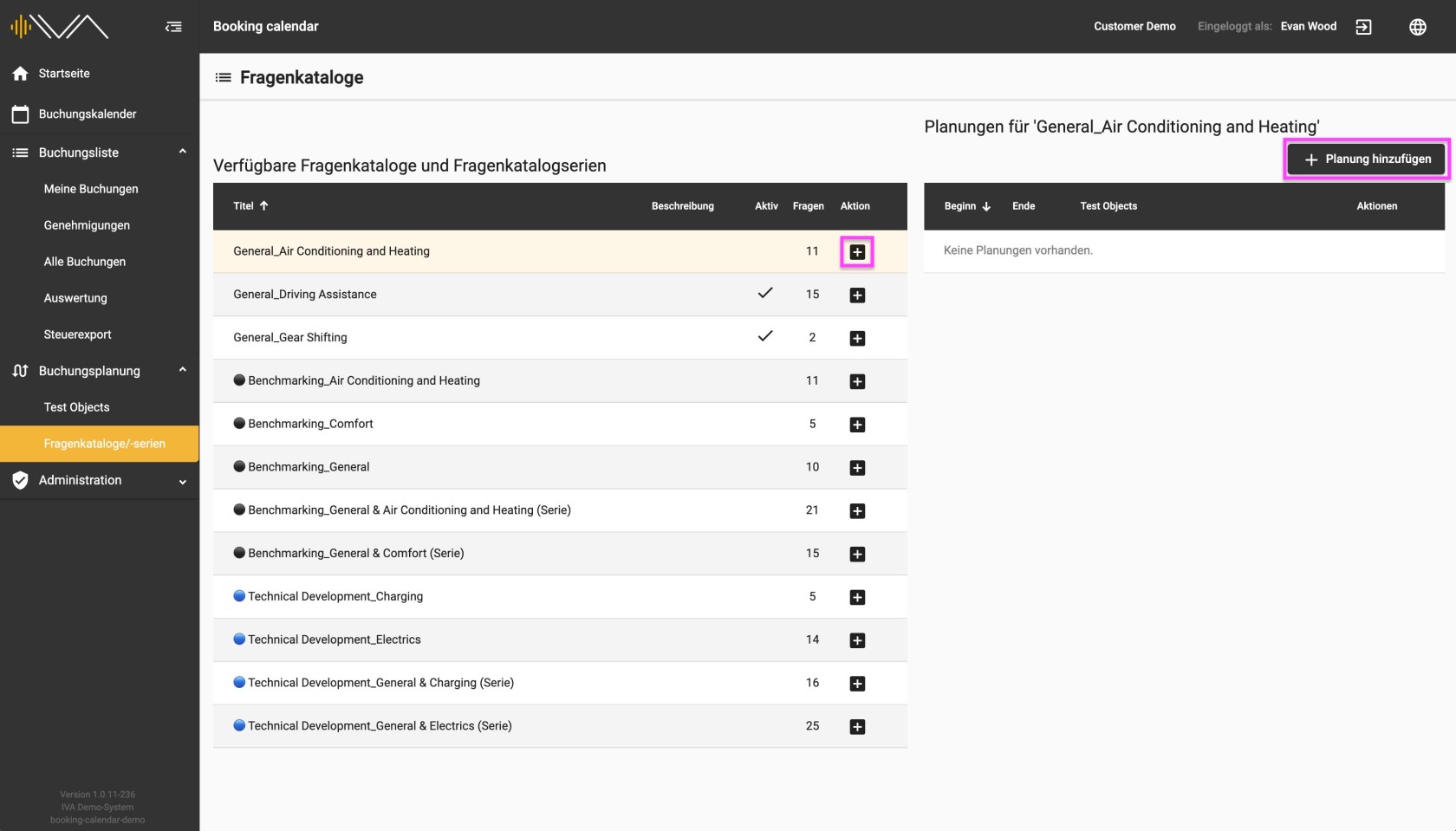
<span data-contrast="auto">Under the menu item “Question catalogs/series” you will find two tables. On the left is a table with “Available questionnaires and questionnaire series". </span><span data-ccp-props="{"201341983":0,"335559739":0,"335559740":240}"> </span>

<span data-ccp-props="{"201341983":0,"335559739":0,"335559740":240}">[![4.2-Buchungskalender-Buchungsplanung-Fragenkataloge-Übersicht.jpg](https://manual.ivaluate.de/uploads/images/gallery/2024-07/scaled-1680-/4-2-buchungskalender-buchungsplanung-fragenkataloge-ubersicht.jpg)](https://manual.ivaluate.de/uploads/images/gallery/2024-07/4-2-buchungskalender-buchungsplanung-fragenkataloge-ubersicht.jpg)</span>

<span data-contrast="auto">If you click on a row of the questionnaire/questionnaire series, the tile is colored light yellow and you can perform an action by clicking on the "+" icon or by clicking on the "+ Add planning" button at the top right. </span><span data-ccp-props="{"201341983":0,"335559739":0,"335559740":240}"> </span>

<span class="EOP SCXW210404464 BCX4" data-ccp-props="{"201341983":0,"335559739":0,"335559740":240}"><span style="font-family: Roboto;">[![4.2-Buchungskalender-Buchungsplanung-Fragenkataloge-Planung-hinzufügen.png](https://manual.ivaluate.de/uploads/images/gallery/2024-07/scaled-1680-/4-2-buchungskalender-buchungsplanung-fragenkataloge-planung-hinzufugen.png)](https://manual.ivaluate.de/uploads/images/gallery/2024-07/4-2-buchungskalender-buchungsplanung-fragenkataloge-planung-hinzufugen.png)</span></span>

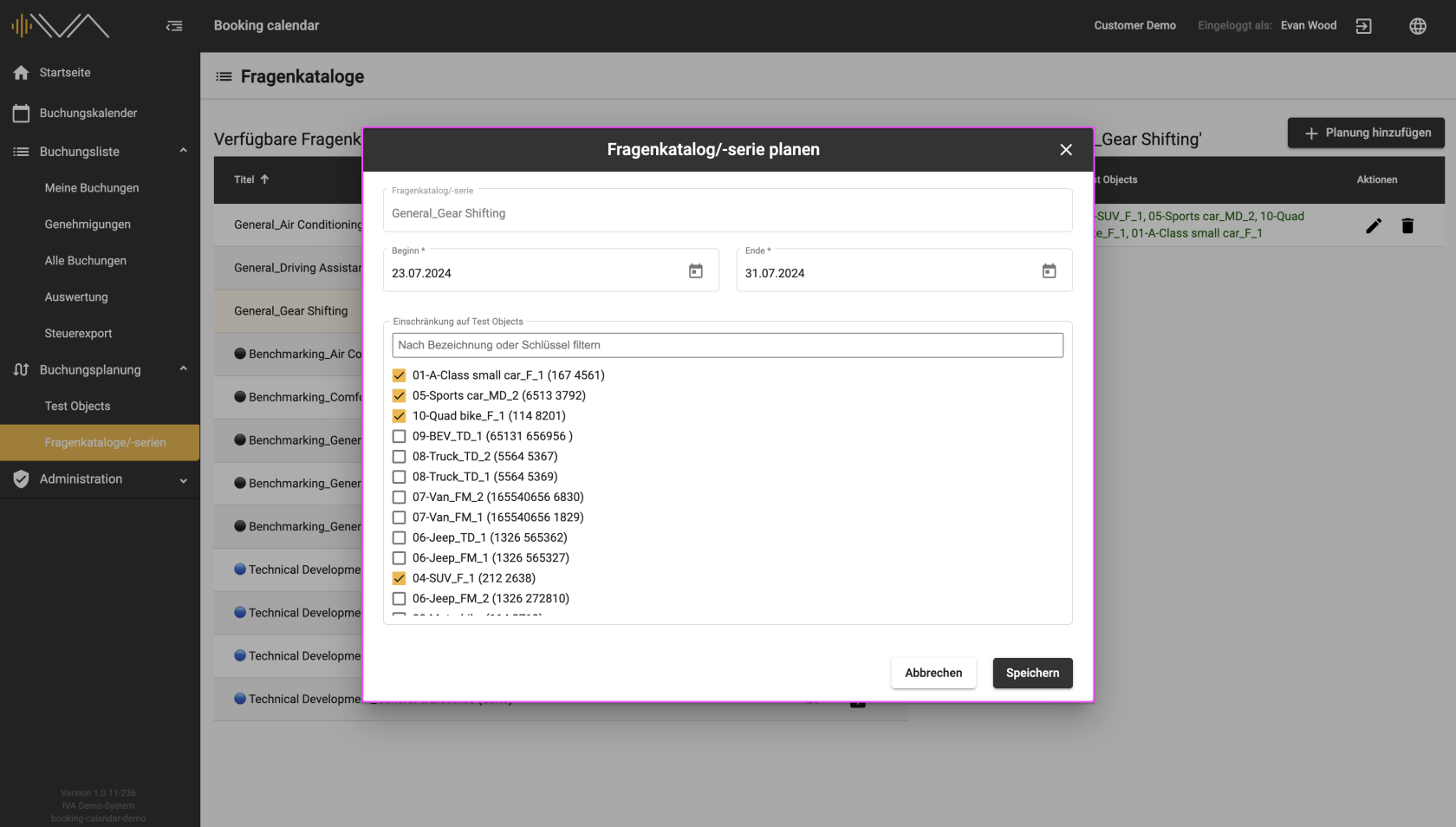
<span data-contrast="auto">A new window then appears in which you can assign the “Start date” and “End date” and also the vehicles listed to the corresponding questionnaire. In the list of test objects, you will see the name of the test object, the key value and the first two attributes listed in brackets. </span><span data-ccp-props="{"201341983":0,"335559739":0,"335559740":240}"> </span>

<span data-ccp-props="{"201341983":0,"335559739":0,"335559740":240}"> <span style="font-family: Roboto;">[![4.2-IVA-Buchungskalender-Buchungsplanung-Fragenkataloge-Übersicht-geplant.png](https://manual.ivaluate.de/uploads/images/gallery/2024-07/scaled-1680-/4-2-iva-buchungskalender-buchungsplanung-fragenkataloge-ubersicht-geplant.png)](https://manual.ivaluate.de/uploads/images/gallery/2024-07/4-2-iva-buchungskalender-buchungsplanung-fragenkataloge-ubersicht-geplant.png)</span></span>

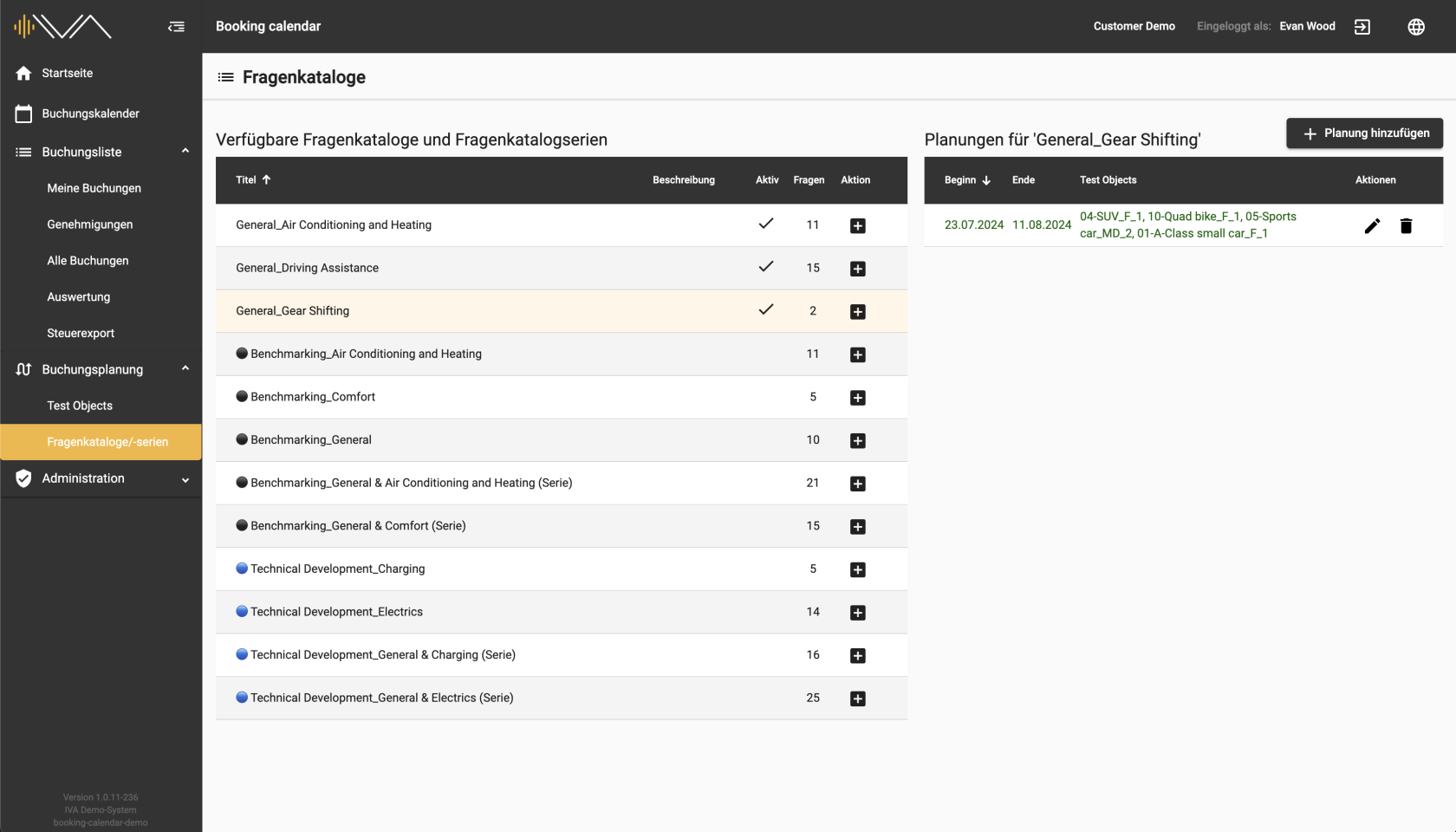
<span data-contrast="auto">A new line then appears with the start, end and vehicles, which you can edit or delete.</span><span data-ccp-props="{"201341983":0,"335559739":0,"335559740":240}"> </span>

<span data-contrast="auto">This allows you to assign individual “ Planning” to each question catalog. These plans are automatically assigned to the corresponding vehicle in the corresponding period and answered by the tester.</span>