# 3. Booking list for planners

There are 5 submenu items under the booking list, each with the corresponding details: 
3.1 My bookings 
3.2 Approvals 
3.3 All bookings 
3.4 Reports 
3.5 Tax export

# 3.1. Overview "My bookings" for planners

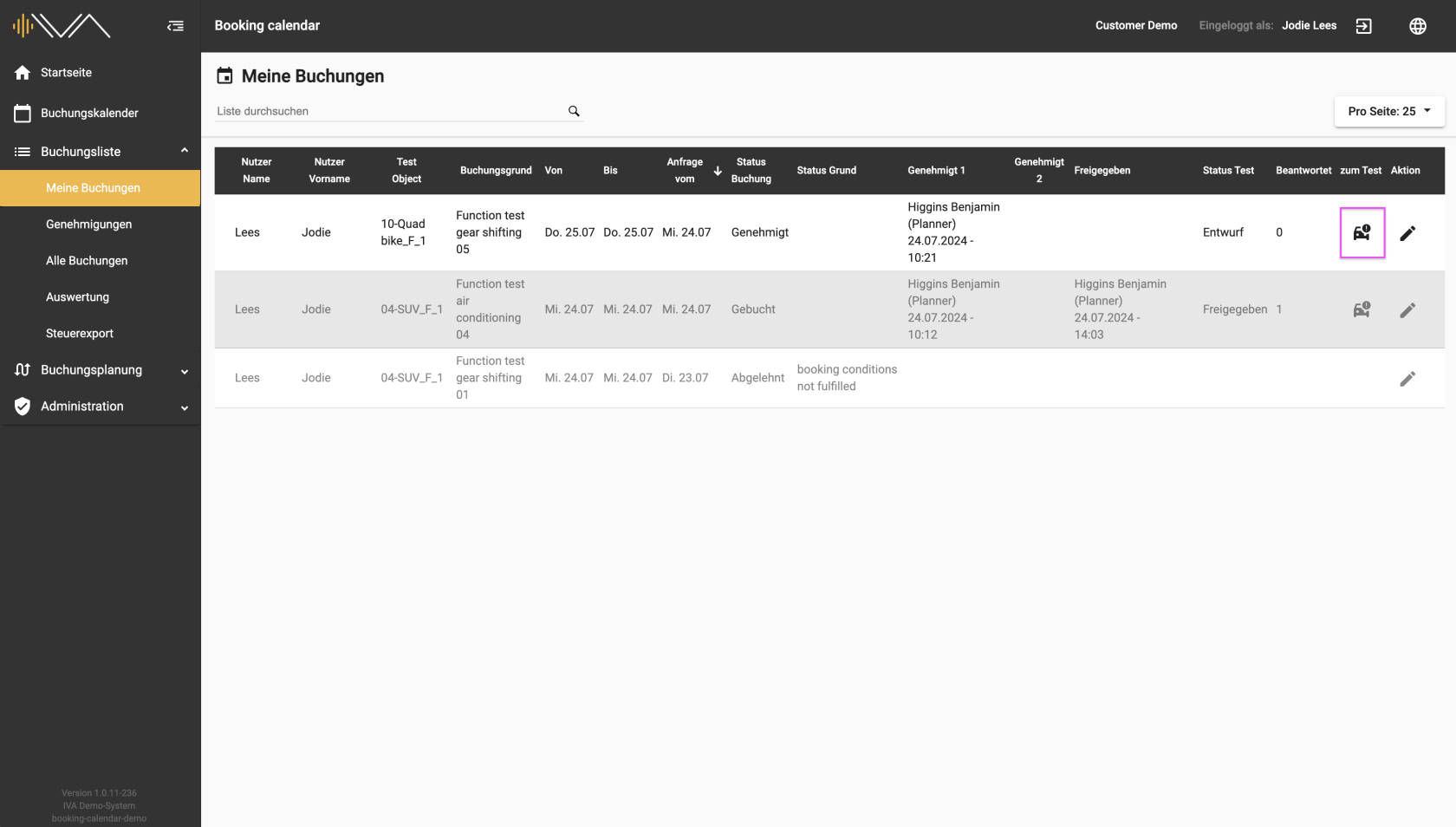
<span data-contrast="auto">The booking list provides you with an overview of all bookings that you have requested or booked. The list is made up of several columns. </span><span data-ccp-props="{"201341983":0,"335559739":0,"335559740":240}"> </span>

<span data-contrast="auto">On the left, there is a **“Test object”** column in which the test object name and the first two attributes are listed. </span><span data-ccp-props="{"201341983":0,"335559739":0,"335559740":240}"> </span>

<span data-contrast="auto">On the far right is the column: **“To test”**. If a drive has been approved, the column is filled with a “Car” icon. Clicking on the icon takes you to the corresponding test, i.e. a new tab opens in the tester web application.</span><span data-ccp-props="{"201341983":0,"335559739":0,"335559740":240}"> </span><span data-contrast="auto"> </span><span data-ccp-props="{"201341983":0,"335559739":0,"335559740":240}"> </span>

<span data-contrast="auto">[![3.1.1-IVA-Buchungskalender-Buchungsliste-Meine-Buchungen-Planer.png](https://manual.ivaluate.de/uploads/images/gallery/2024-07/scaled-1680-/3-1-1-iva-buchungskalender-buchungsliste-meine-buchungen-planer.png)](https://manual.ivaluate.de/uploads/images/gallery/2024-07/3-1-1-iva-buchungskalender-buchungsliste-meine-buchungen-planer.png)</span>

<span data-contrast="auto">The **“Status test”** and **“Answered”** columns can be sorted.</span><span data-ccp-props="{"201341983":0,"335559739":0,"335559740":240}"> </span>

<span data-contrast="auto">The tester only sees this one submenu item. All other submenu items listed below it are invisible to the tester.</span>

# 3.2. Approvals

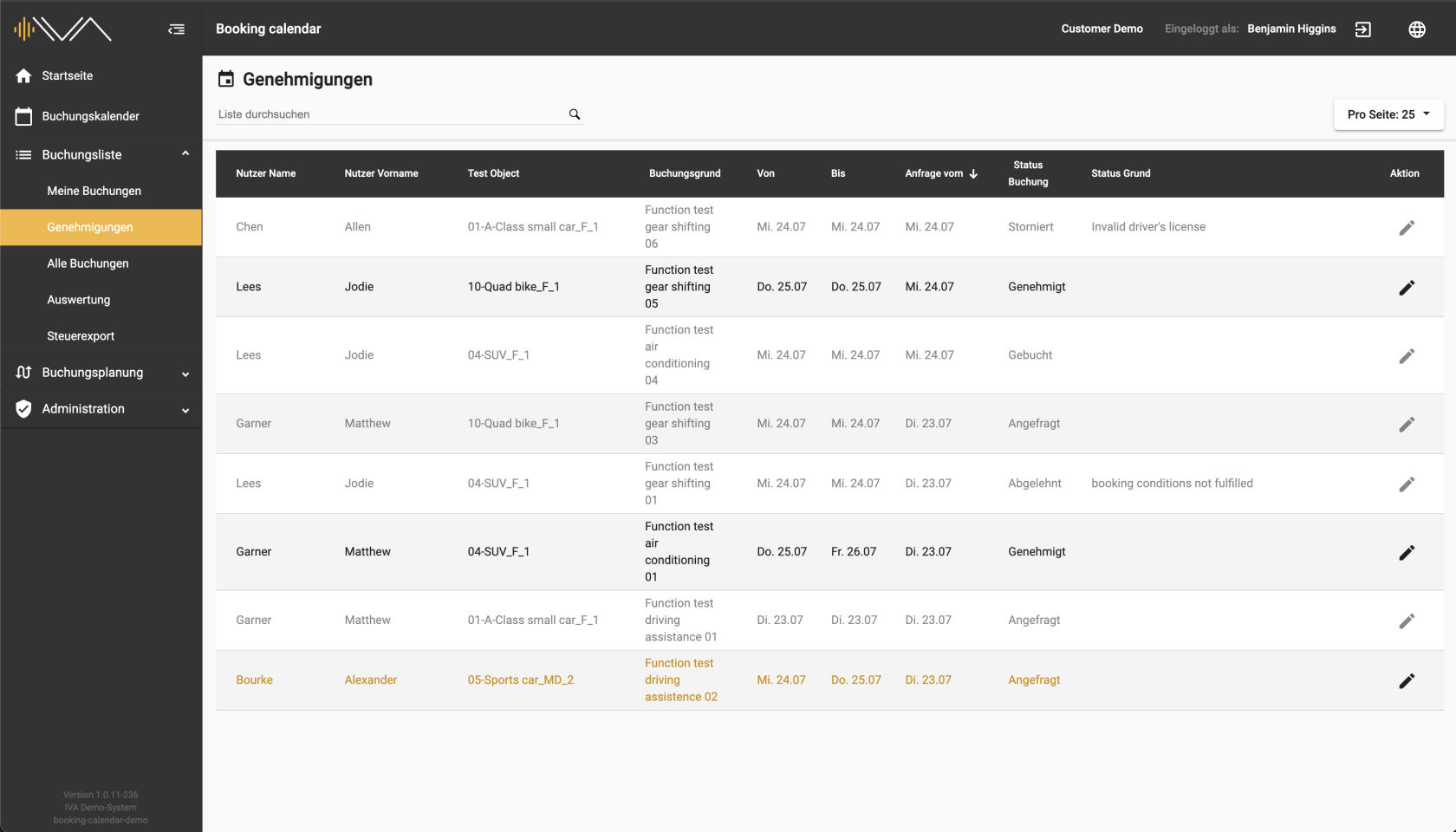
<span data-contrast="auto">If you have been assigned the Approver role, you will find all booking requests an their statuses under this menu item: </span><span data-ccp-props="{"201341983":0,"335559739":0,"335559740":240}"> </span>

<span data-contrast="auto">The bookings can have following statuses:</span><span data-ccp-props="{"201341983":0,"335559739":0,"335559740":240}"> </span>

- <span data-contrast="auto">Approved </span><span data-ccp-props="{"201341983":0,"335559739":0,"335559740":240}"> </span>
- <span data-contrast="auto">Requested</span><span data-ccp-props="{"201341983":0,"335559739":0,"335559740":240}"> </span>
- <span data-contrast="auto">Booked</span><span data-ccp-props="{"201341983":0,"335559739":0,"335559740":240}"> </span>
- <span data-contrast="auto">Canceled</span><span data-ccp-props="{"201341983":0,"335559739":0,"335559740":240}"> </span>
- <span data-contrast="auto">Rejected</span><span data-ccp-props="{"201341983":0,"335559739":0,"335559740":240}"> </span>

<span data-ccp-props="{"201341983":0,"335559739":0,"335559740":240}"><span style="font-family: Roboto;">[![3.1.2-IVA-Buchungskalender-Genehmigungen-Planer.png](https://manual.ivaluate.de/uploads/images/gallery/2024-07/scaled-1680-/3-1-2-iva-buchungskalender-genehmigungen-planer.png)](https://manual.ivaluate.de/uploads/images/gallery/2024-07/3-1-2-iva-buchungskalender-genehmigungen-planer.png)</span></span>

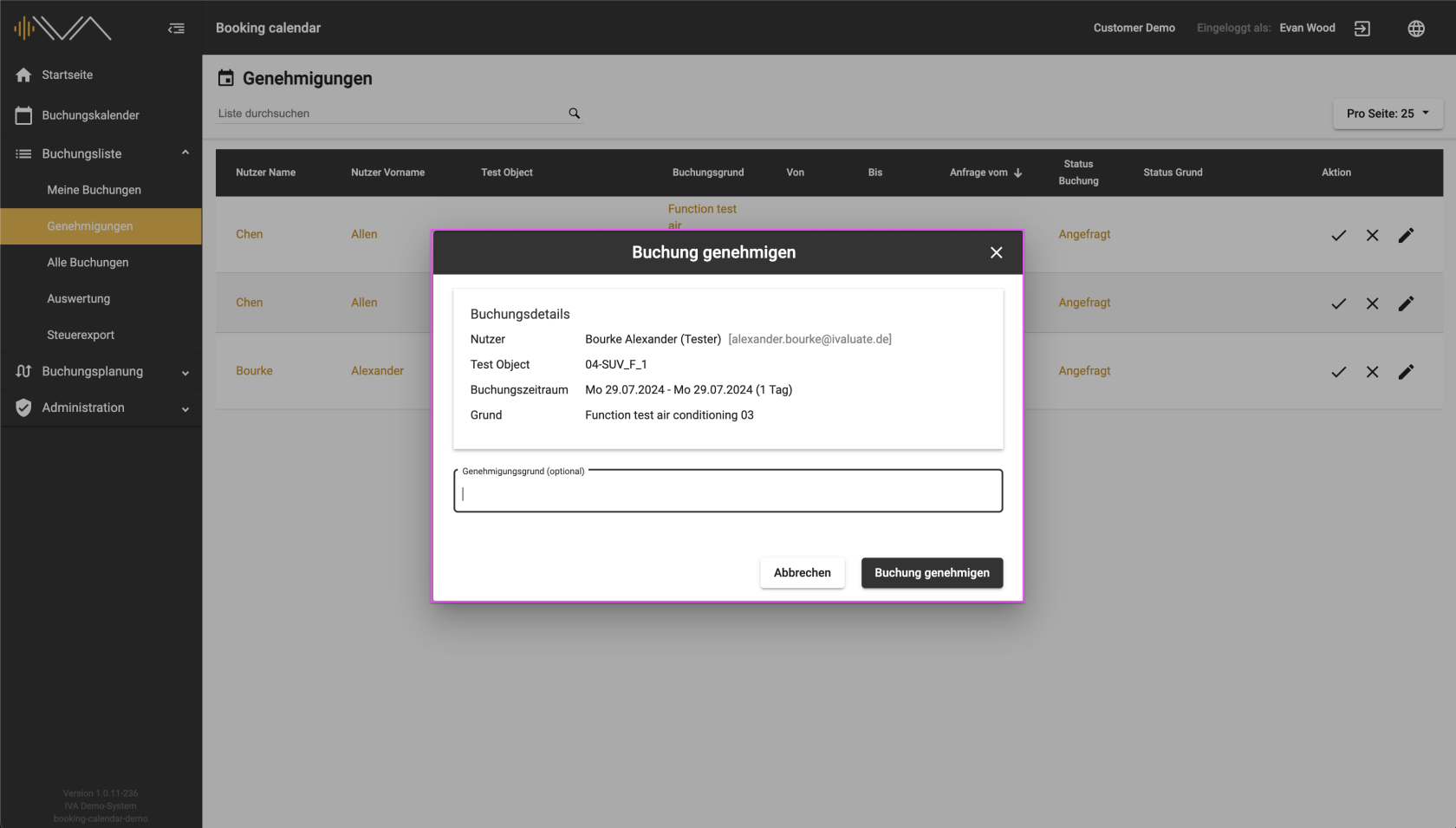
<span data-contrast="auto">To approve a booking, please click on the “pencil” icon. A separate pop-up will open: “Approve booking”. Here you can approve the booking and optionally enter the reason for approval.</span>

<span data-contrast="auto">[![3.2.1-IVA-Buchungskalender-Buchungsliste-Genehmigungen-Detail.png](https://manual.ivaluate.de/uploads/images/gallery/2024-07/scaled-1680-/3-2-1-iva-buchungskalender-buchungsliste-genehmigungen-detail.png)](https://manual.ivaluate.de/uploads/images/gallery/2024-07/3-2-1-iva-buchungskalender-buchungsliste-genehmigungen-detail.png)</span>

The booking is approved by clicking on the “Approve booking” button.

# 3.3. All bookings

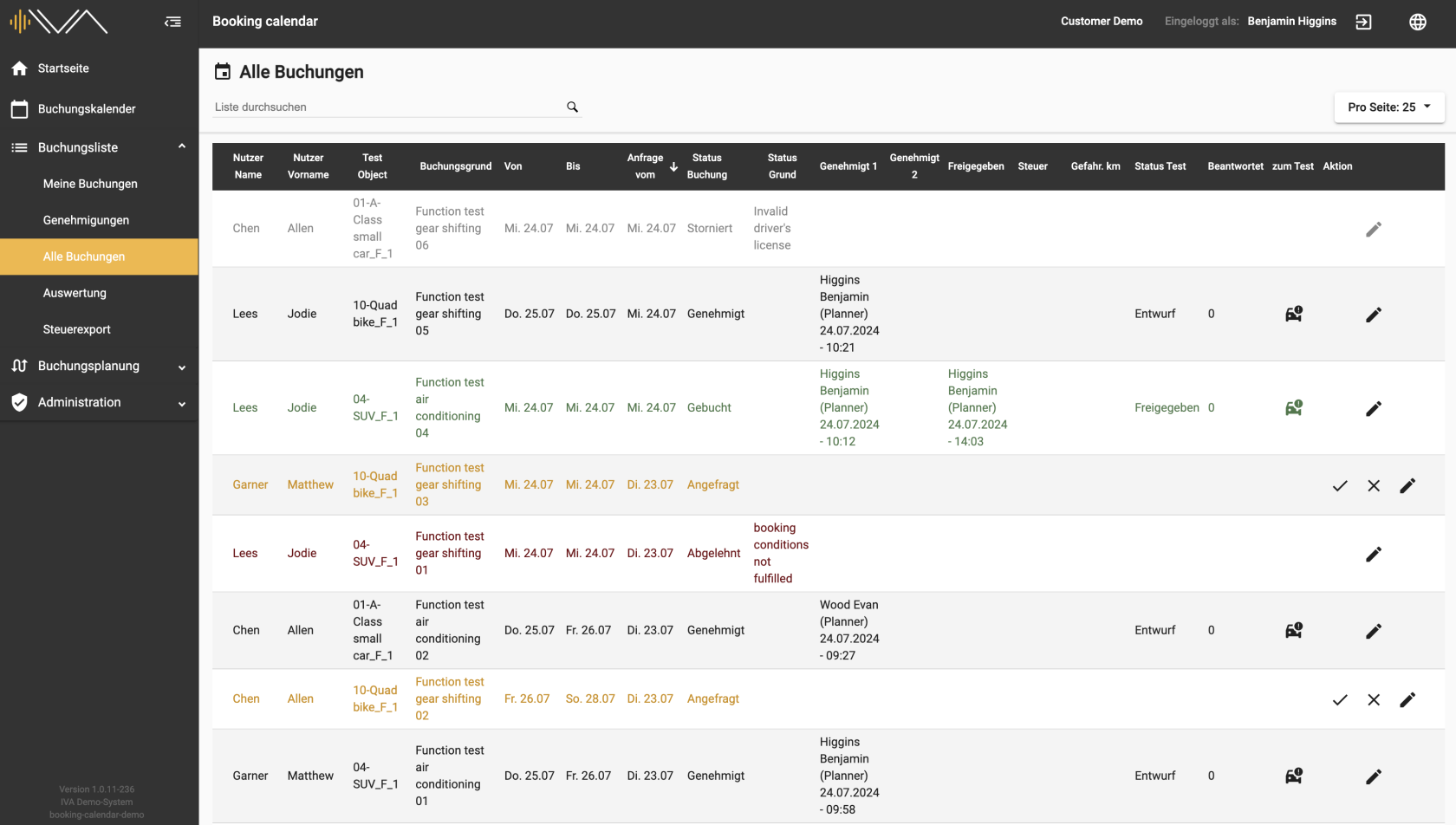
<span data-contrast="auto">Here you can see all the bookings that have been requested in this division. The various <span style="background-color: #f1c40f;">statuses</span> can be viewed under the **“Booking status”** column. Here you can subsequently enter the value of the **“kilometers driven”** and edit the reason for a blocking booking.</span><span data-ccp-props="{"201341983":0,"335559739":0,"335559740":240}"> </span><span data-ccp-props="{"201341983":0,"335559739":0,"335559740":240}"> </span>

<span data-contrast="auto">On the far right is the column: **“To test”**. If a drive has been approved, the column is filled with a “Car” icon. Clicking on the icon takes you to the corresponding test, i.e. a new tab opens in the tester web application.</span><span data-ccp-props="{"201341983":0,"335559739":0,"335559740":240}"> </span>

<span data-ccp-props="{"201341983":0,"335559739":0,"335559740":240}"><span class="EOP SCXW77717 BCX4" data-ccp-props="{"201341983":0,"335559739":0,"335559740":240}">[![3.3.1-IVA-Buchungskalender-Alle-Buchungen-Planer.png](https://manual.ivaluate.de/uploads/images/gallery/2024-07/scaled-1680-/3-3-1-iva-buchungskalender-alle-buchungen-planer.png)](https://manual.ivaluate.de/uploads/images/gallery/2024-07/3-3-1-iva-buchungskalender-alle-buchungen-planer.png)</span></span>

<span data-contrast="auto">The **“Status test”** and **“Finished”** columns can be sorted.</span>

# 3.5. Tax export

<span data-contrast="auto">Here you can create a monthly export if the “Tax” column is filled in under the “All bookings” menu item and values are entered in the “Kilometers driven” column. </span><span data-ccp-props="{"201341983":0,"335559739":0,"335559740":240}"> </span>

<span data-ccp-props="{"201341983":0,"335559739":0,"335559740":240}"> </span><span data-contrast="auto">Simply select a month and the corresponding year and click on the “Create export” button at the bottom right. An Excel file will now be generated and downloaded.</span><span data-ccp-props="{"201341983":0,"335559739":0,"335559740":240}"> </span>

<span data-contrast="auto">If errors are found, a manual change must be made in the corresponding line under “All bookings”.</span><span data-ccp-props="{"201341983":0,"335559739":0,"335559740":240}"></span>